
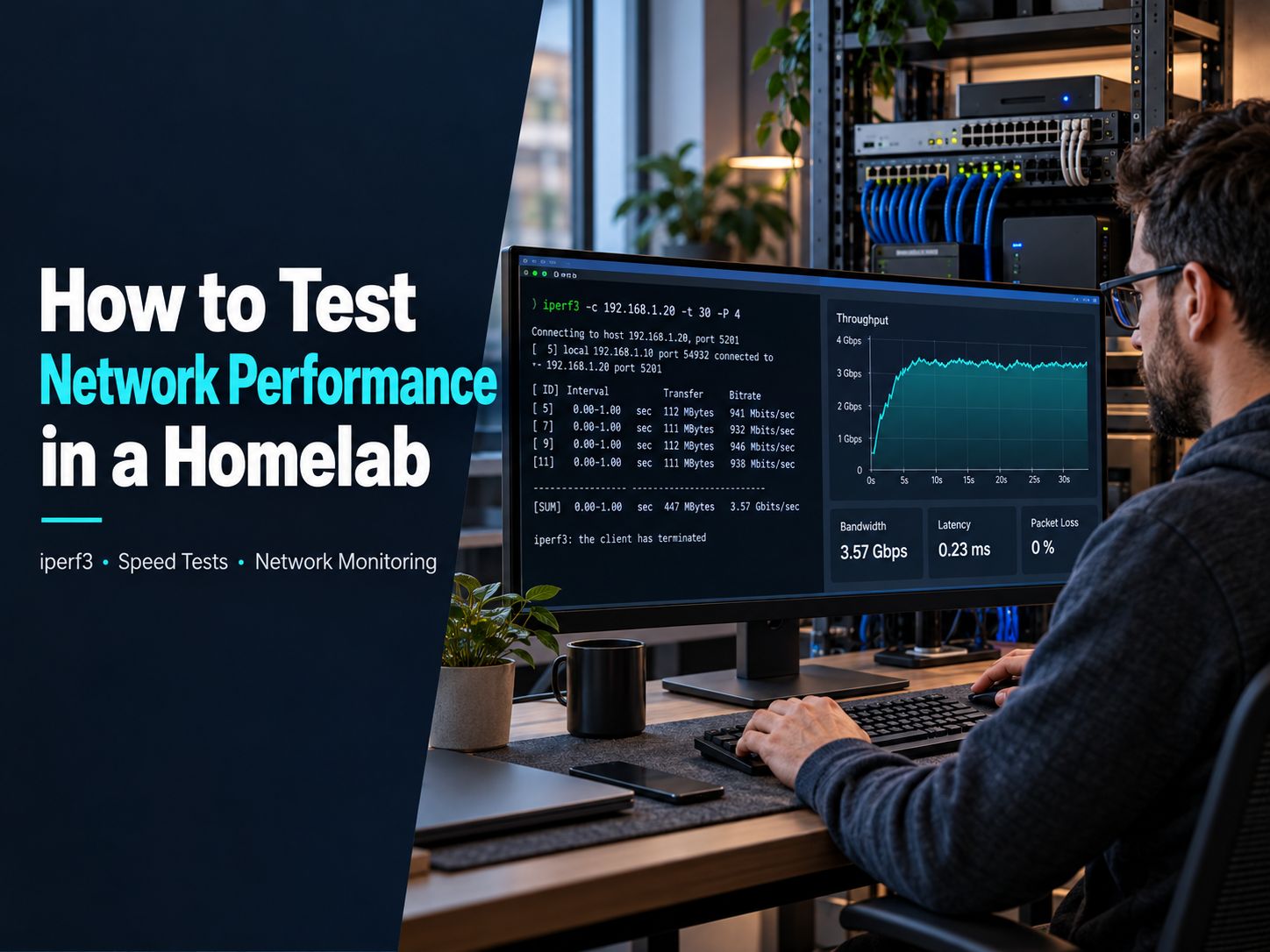
Knowing how to test network performance in a homelab means understanding more than download speed. Your network might have a fast internet connection but struggle with NAS transfers, Proxmox virtual machines, or inter-VLAN traffic. This guide explains how to measure local throughput using iperf3, check internet performance with speed tests, monitor network reliability, and diagnose bottlenecks using repeatable tests.
What Is the Best Way to Test Homelab Network Performance?
The best approach is to measure LAN throughput, internet speed, latency, packet loss, and interface utilization separately. Together, these reveal whether a slowdown originates inside your homelab, at your router, or beyond your internet connection.
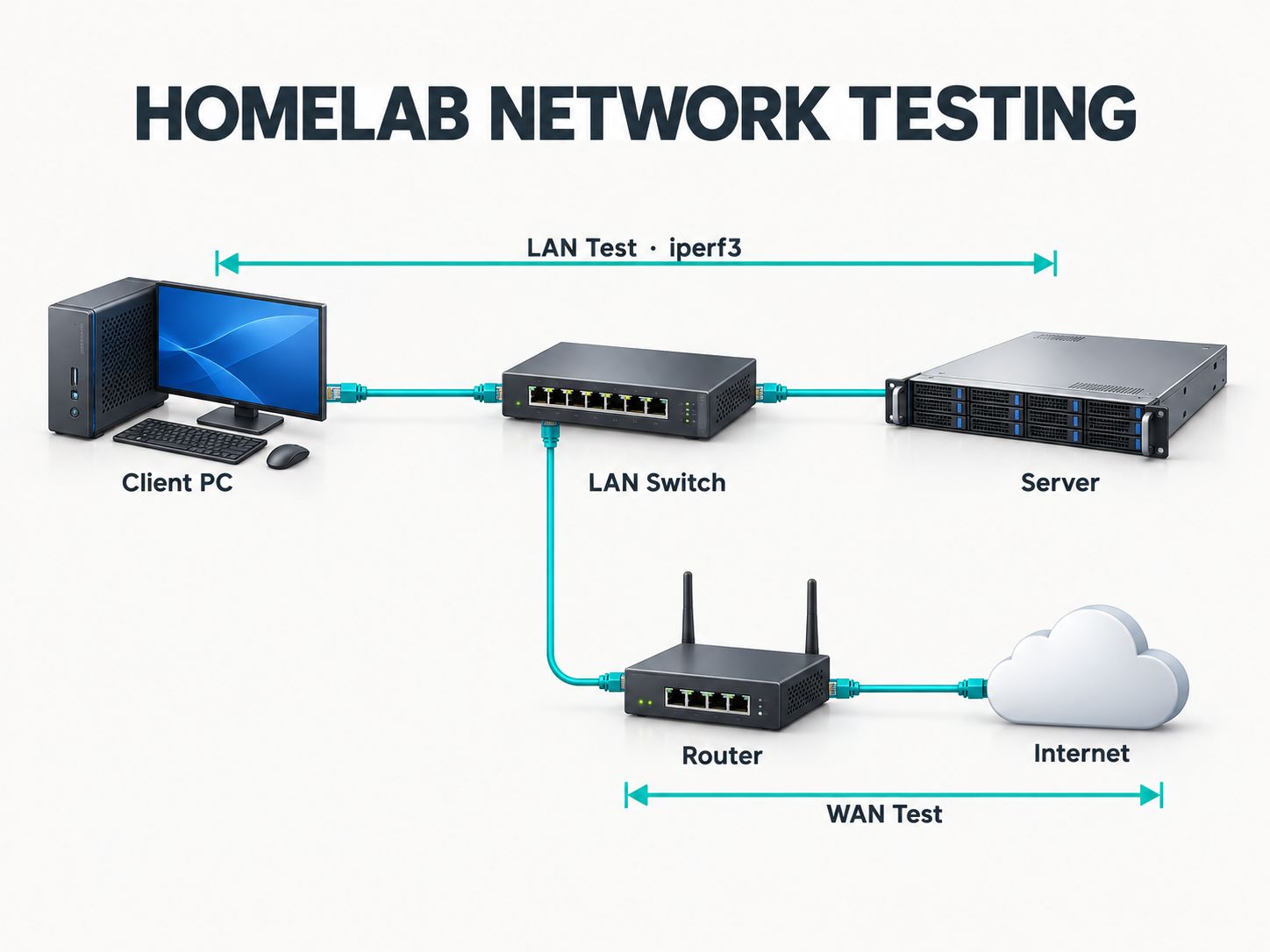
For a basic homelab assessment, use five measurements:
| Measurement | What it tells you | Tool |
|---|---|---|
| LAN throughput | Speed between local devices | iperf3 |
| WAN speed | Internet download and upload | Internet speed test |
| Latency | Network response delay | Ping |
| Packet loss/jitter | Connection consistency | Ping and UDP testing |
| Utilization/errors | Congestion and physical issues | SNMP or interface counters |
Start with wired Ethernet whenever possible. Establish a baseline before testing Wi-Fi, VLAN routing, or virtual machines.
If your homelab uses multiple subnets, the SafeNetworkHub Subnet Calculator can help verify IPv4 addressing and subnet boundaries before you begin. If you are building a network for the first time, the guide on how to set up a home network from scratch provides additional background.
iperf3 vs Speed Test vs Speedtest Tracker: Which Tool Should You Choose?
Choose the tool based on where you suspect the problem exists. An internet speed test cannot reliably measure your internal 10GbE switch, while iperf3 alone will not tell you how your ISP performs throughout the day.
| Tool | Best for | Limitation |
|---|---|---|
| iperf3 | Testing local network throughput | Requires a compatible test server |
| Internet speed test | Measuring WAN download/upload | Affected by external test-server conditions |
| Speedtest Tracker | Tracking ISP speed over time | Does not directly test local LAN links |
| Ping | Latency, reachability, basic loss | Does not measure throughput |
| LibreNMS | Network interface monitoring | Requires supported telemetry |
| Wireshark | Packet-level troubleshooting | Requires technical interpretation |
Quick decision: If copying a file from your NAS is slow, start with iperf3. If websites and downloads are slow but your LAN is healthy, check your internet connection. If performance drops at predictable times, collect historical measurements.
How to Run an iperf3 Test in Your Homelab
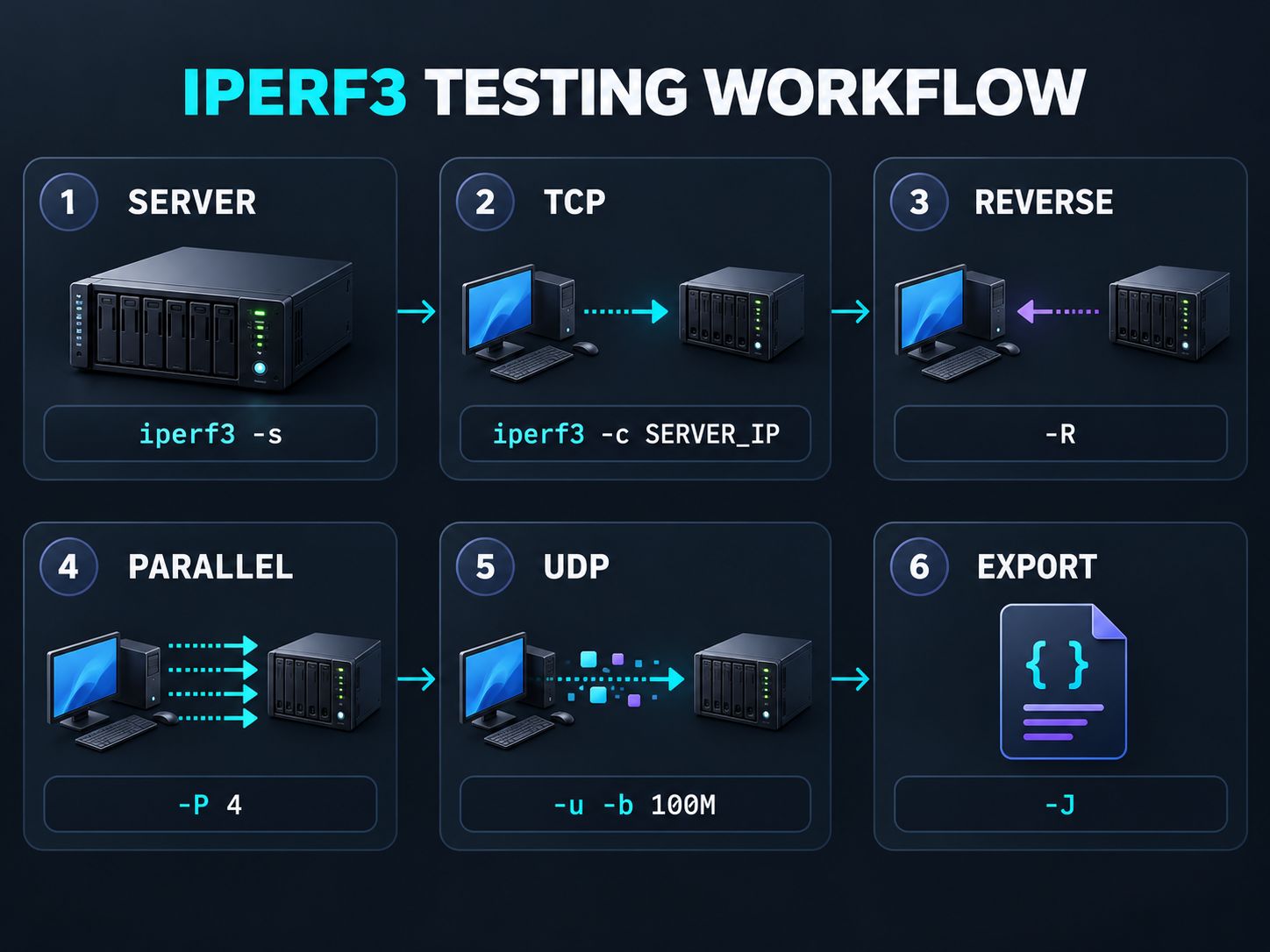
iperf3 measures network throughput between two endpoints. It supports TCP and UDP tests, reverse-direction testing, parallel streams, and machine-readable output.
The commands below follow the official iperf3 documentation.
Step 1: Install iperf3
On Ubuntu or Debian:
sudo apt update
sudo apt install iperf3
Check the installed version:
iperf3 --versionThe latest release confirmed in the official project history as of October 8, 2026, is iperf3 3.22, released September 29, 2026. Your operating system’s package repository may provide a different version.
Step 2: Start the server
On the destination server:
iperf3 -sBy default, iperf3 listens on TCP port 5201.
Assume the server’s local IP address is 192.168.1.10.
The listener should remain accessible only from trusted devices and networks. If your VLAN firewall blocks the connection, the Firewall Configuration Assistant can help plan a least-privilege rule. It does not apply firewall changes automatically.
Step 3: Measure TCP throughput
On your client:
iperf3 -c 192.168.1.10 -t 30This sends TCP traffic for 30 seconds.
A hypothetical result could be:
Transfer: 3.30 GBytes
Bitrate: 945 Mbits/sec
Example: Illustrative measurement for explaining output; not a real benchmark.
A result around 945 Mbps would be consistent with a well-performing 1GbE link under common conditions.
Compare your measurement with the negotiated link speed, not merely the advertised maximum speed of your switch.
Step 4: Test reverse throughput
iperf3 -c 192.168.1.10 -R -t 30This reverses the traffic direction.
If forward and reverse performance differ substantially, investigate the affected endpoint, interface, or traffic-processing path.
Step 5: Try parallel streams
iperf3 -c 192.168.1.10 -P 4 -t 30This uses four parallel TCP streams.
It can help reveal whether a single-stream limit is affecting throughput, particularly on higher-speed network links.
However, do not interpret the highest multi-stream result as typical single-application performance.
Step 6: Measure UDP jitter and packet loss
iperf3 -c 192.168.1.10 -u -b 100M -t 30This sends UDP traffic with a target bitrate of 100 Mbps.
Inspect the receiver-side results for jitter and packet loss. Repeat at different target bitrates to identify where the network begins dropping traffic.
Excessively aggressive UDP tests can disrupt other devices, so increase traffic gradually.
Step 7: Export the test result
iperf3 -c 192.168.1.10 -t 30 -J > baseline.jsonThis saves the test output in JSON format.
Keep the file alongside relevant network configuration details so you can compare future measurements.
Best Practice: Save your test configurations and repeat measurements under comparable network conditions. A repeatable test is more useful than one isolated speed result.
How Fast Should Your Homelab Network Be?
A useful network test compares application-level throughput against the physical link’s negotiated speed.
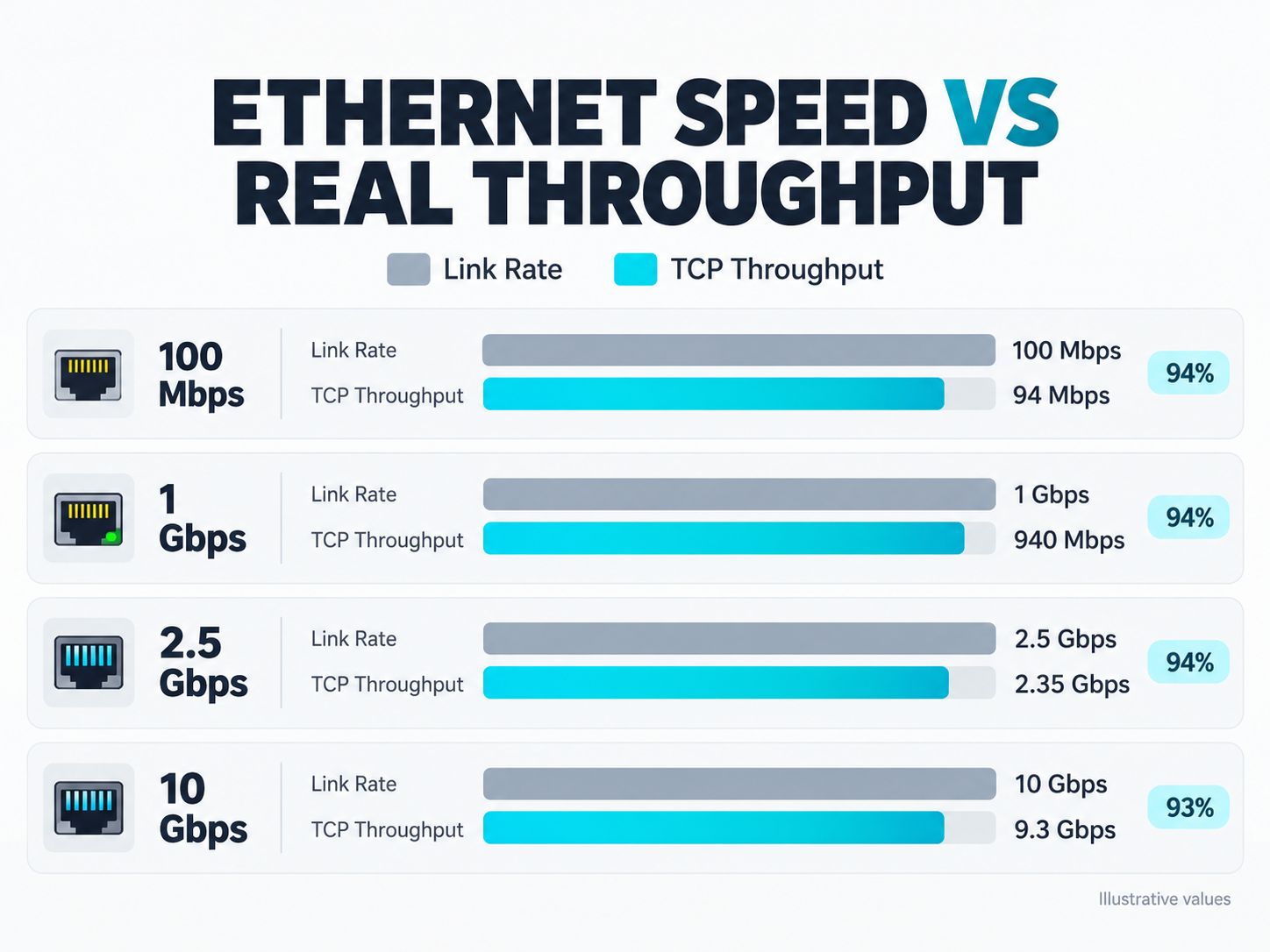
The table below provides illustrative performance expectations for healthy, capable wired TCP test environments.
| Link speed | Approximate throughput range |
|---|---|
| 100 Mbps | 90–95 Mbps |
| 1 Gbps | 900–950 Mbps |
| 2.5 Gbps | 2.2–2.4 Gbps |
| 10 Gbps | 8–9.5 Gbps |
These are diagnostic reference ranges, not guarantees. CPU limitations, TCP behavior, drivers, virtualization, and test configuration can change the result.
Why doesn’t a 1Gbps connection show exactly 1Gbps?
Ethernet, IP, TCP, and other protocol overheads consume part of the physical link capacity.
As a result, application-level throughput is lower than the advertised line rate.
A 1GbE connection delivering approximately 940 Mbps in a properly configured TCP test can be behaving normally.
Key Takeaway: Compare measured throughput against the negotiated link speed and realistic protocol overhead before concluding that a network connection is underperforming.
How to Diagnose Slow Network Performance
Once you have a measurement, the next step is to isolate the limiting component.
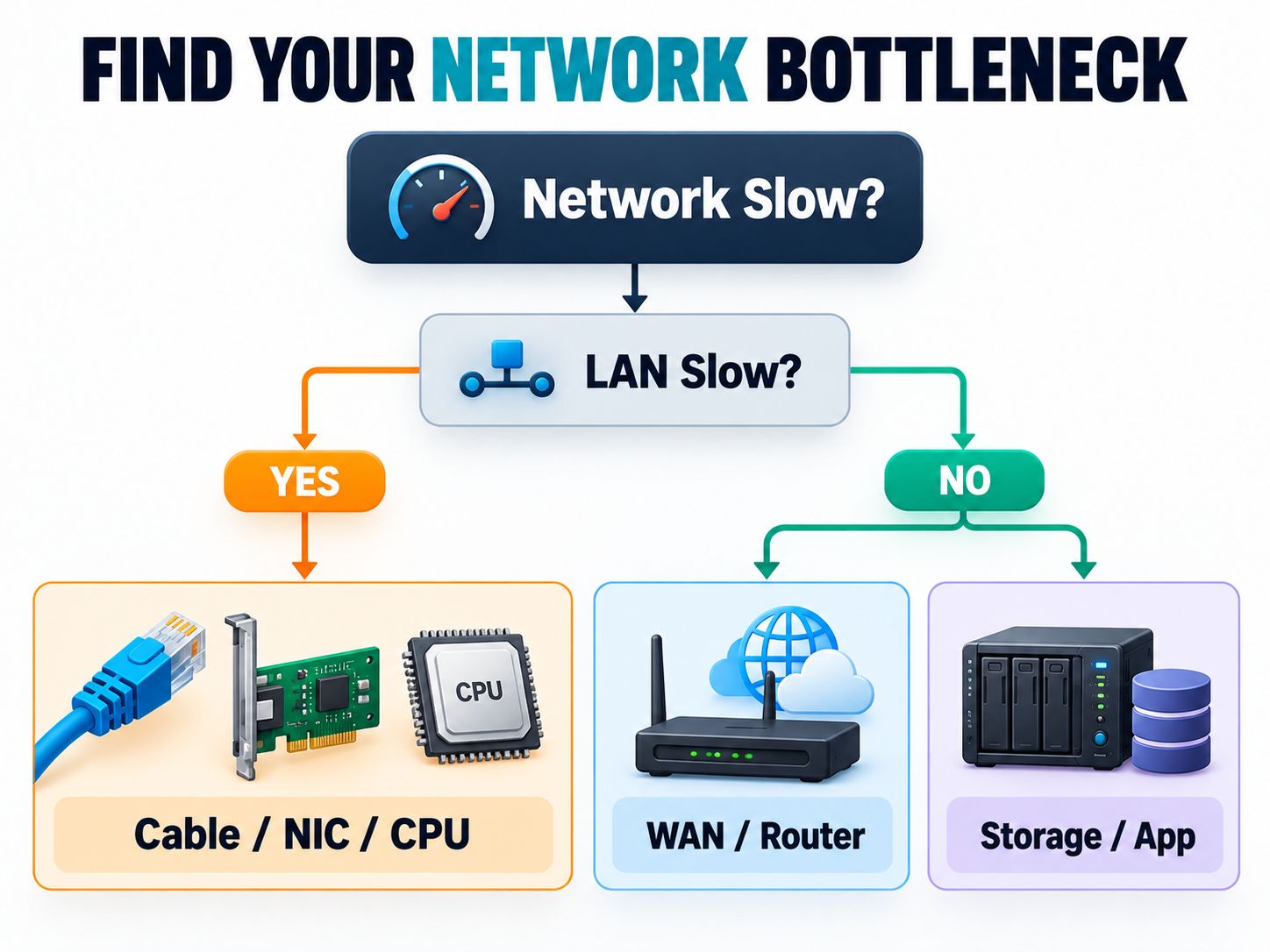
| Observed result | What to investigate first |
|---|---|
| About 94 Mbps on a 1GbE setup | Check whether the link negotiated at 100 Mbps |
| Poor throughput in both directions | Cabling, NIC, CPU, switch and test endpoints |
| Good forward speed, poor reverse speed | Endpoint-specific errors, processing, drivers |
| Fast LAN, slow internet | Router WAN path, ISP or external test server |
| Host is fast, VM is slow | Virtual NIC, bridge, vCPU or guest drivers |
| High throughput, slow NAS copies | Storage, SMB/NFS, disks or application overhead |
| Strong idle performance, lag under load | Congestion, queueing and traffic shaping |
Check link negotiation before changing software settings
On Linux:
sudo ethtool enp3s0Replace enp3s0 with the correct interface name.
Check the negotiated speed, duplex mode, and link status.
A 1GbE-capable network connection running at 100 Mbps can explain an apparent throughput ceiling near 94 Mbps.
Compare network throughput with file-transfer speed
Suppose your iperf3 result is 940 Mbps, but a large file copied to your NAS transfers at only 35 MB/s.
The two values represent different measurements.
940 Mbps is approximately 117.5 MB/s in decimal units. A 35 MB/s file transfer is approximately 280 Mbps.
That difference suggests investigating the storage or application path, not assuming the Ethernet connection is faulty.
Disk performance, file size, filesystem behavior, protocol overhead, and CPU processing can all matter.
Check Proxmox and virtualized networking
For Proxmox and other virtualization platforms, test three separate paths:
- Physical host to physical host.
- Virtual machine to a separate physical host.
- Virtual machine to virtual machine.
When two VMs reside on the same host and virtual bridge, their traffic might remain inside that host. A very high result in this configuration does not prove your physical switch is operating at the same speed.
Isolate routed VLAN performance
Compare iperf3 tests within one VLAN against tests between VLANs.
If the same-VLAN result is healthy but inter-VLAN performance drops, examine the routing device, firewall rules, traffic shaping, and packet inspection.
The Network Monitoring Assessment can help review whether your environment captures the necessary interface, logging, and performance metrics. It is an advisory assessment, not a live bandwidth tester.
For further background on segmentation and access controls, the network security fundamentals guide and Zero Trust Segmentation Planner provide related guidance.
How to Monitor Network Performance Over Time
A successful throughput test tells you what happened during one test window. Monitoring helps reveal congestion, link errors, outages, and repeated slowdowns.
For a small homelab, the highest-value signals are interface utilization, errors, latency, device availability, and historical WAN speed.
Choose a monitoring approach
| Monitoring goal | Suitable tool |
|---|---|
| Traffic utilization | LibreNMS or Zabbix |
| System and network dashboards | Prometheus and Grafana |
| Network traffic breakdown | ntopng |
| Detailed packet inspection | Wireshark |
| Historical internet speed | Speedtest Tracker |
| Availability monitoring | Ping-based monitoring |
If you have limited monitoring coverage, the Network Security Monitoring Tools assessment can help identify telemetry gaps. It evaluates architecture and controls rather than capturing live traffic.
For security event visibility, the Security Monitoring Tool Finder can help narrow down tools that match your infrastructure and deployment requirements.
The Cybersecurity Monitoring Assessment offers another way to evaluate monitoring capabilities, while the Cybersecurity Monitoring Tool Finder focuses on choosing suitable monitoring solutions.
How to use Speedtest Tracker
Speedtest Tracker is designed for self-hosted historical internet performance monitoring. It uses Ookla’s Speedtest CLI and supports Docker deployment.
A simple deployment workflow is to prepare a Docker host, follow the project’s configuration instructions, set a scheduled test interval, and review download, upload, and latency trends.
For current installation requirements, use the official Speedtest Tracker documentation. Its documentation currently identifies the v1.14.x series.
Avoid running full-speed tests unnecessarily often. They consume actual bandwidth and can affect other users and applications.
For a structured approach to reviewing monitoring responsibilities over time, SafeNetworkHub also provides a Continuous Monitoring Checklist.
How to Test Wi-Fi Performance Without Confusing It With ISP Speed
To measure wireless network performance, connect your iperf3 server to wired Ethernet and use the wireless device as the client.
Run the test near the access point, then repeat at the locations where devices normally operate.
Compare the results while keeping the server, duration, and test configuration consistent.
Document the wireless band, signal conditions, channel settings, and client hardware.
If a wired test performs well while Wi-Fi throughput fluctuates, focus on wireless coverage, interference, congestion, or client capability before blaming your internet provider.
Remember that Wi-Fi link rates are not equivalent to real TCP throughput.
For related wireless configuration guidance, you can use the Wi-Fi Security Recommendation Tool to review wireless security settings separately from performance measurements.
How to Build a Repeatable Homelab Performance Baseline
A reliable baseline needs more than one result.
Record the network path, hardware, link speed, test settings, direction, and conditions. Repeat the same measurements after changing a switch, firewall, network adapter, or virtual networking configuration.
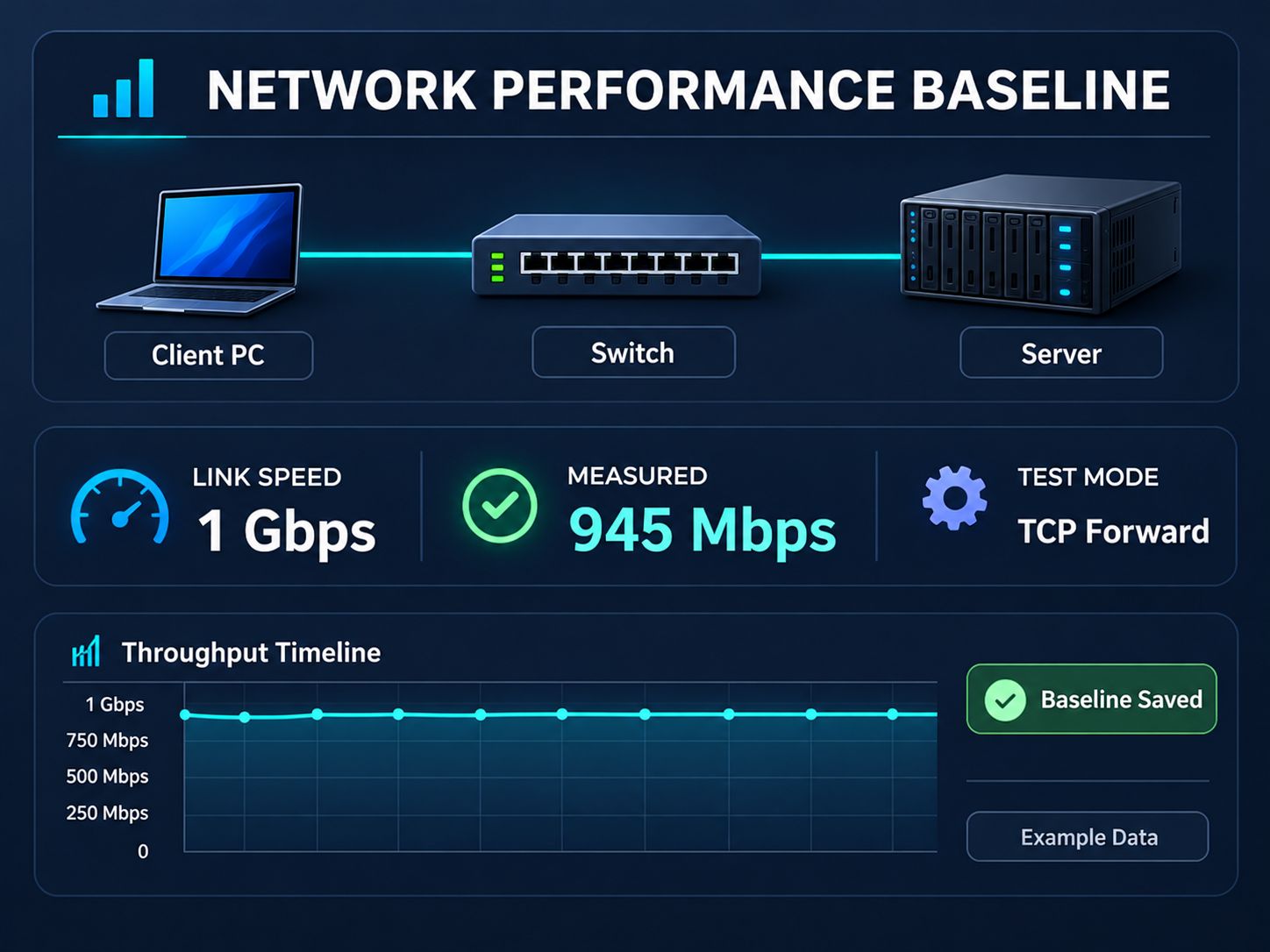
Here is a sample worksheet:
| Test | Link | Measured throughput | Notes |
|---|---|---|---|
| Client → server | 1GbE | 945 Mbps | Example: normal |
| Server → client | 1GbE | 931 Mbps | Example: normal |
| Client → NAS | 2.5GbE | 1,350 Mbps | Example: investigate |
| Internet download | 500 Mbps plan | 470 Mbps | Example: near plan rate |
Note: These entries are hypothetical and demonstrate documentation only.
A performance change should be evaluated against the original configuration and repeated measurements, not a single isolated reading.
Best Practice: Record both the original and updated test results when changing network hardware or configuration. Retain the same test path and settings whenever possible.
For homelabs with expanding network segmentation, the Network Vulnerability Management Assessment can help review infrastructure risk-management processes separately from speed testing.
Network performance and security are related operational concerns, but they require different measurement tools.
The article on network security, Zero Trust, and AI explores broader security considerations, while the Business Network Security Assessment offers a separate evaluation of network protection practices.
Frequently Asked Questions
How can I test my network performance?
Use iperf3 between two local devices to measure LAN throughput, ping to inspect latency and packet loss, and a separate speed test to measure internet performance.
How to monitor network traffic in a homelab?
Use SNMP-capable monitoring tools, interface statistics, or network flow collection. LibreNMS, Zabbix, and ntopng are common choices for different monitoring needs.
How to do an Iperf test?
Install iperf3 on two devices, start the server using iperf3 -s, and connect from the client using iperf3 -c SERVER_IP. Review the throughput, then repeat in reverse mode if necessary.
How can I monitor my network performance?
Track interface utilization, errors, latency, and availability over time. Use scheduled active tests selectively and compare results with your baseline.
Why is my 10GbE homelab slower than expected?
Potential causes include CPU limits, PCIe bandwidth, NIC configuration, routing overhead, or insufficient test parallelism. Start by verifying the physical link speed and comparing TCP test configurations.
Is iperf3 better than an internet speed test?
For internal network throughput, iperf3 is generally more appropriate. For assessing ISP performance, a public speed test is more relevant. They are complementary rather than interchangeable.
Can I test my network without internet access?
Yes. A local iperf3 server and client can measure throughput entirely inside a private network.
How often should I run homelab speed tests?
Run baseline tests after significant hardware or configuration changes and when diagnosing performance issues. Continuous monitoring can use less intrusive measurements such as interface counters and lightweight connectivity checks.
Conclusion: Test the Network Path, Not Just the Speed
The most useful homelab performance test is one that helps identify what needs to change.
Start by confirming the negotiated Ethernet speed. Use iperf3 to establish local throughput, compare both traffic directions, and check latency and packet loss when performance is inconsistent. Then investigate hardware, virtualization, storage, routing, or internet connectivity according to the evidence.
A repeatable baseline and clear troubleshooting process are more valuable than a single high speed-test result.
For more network diagnostics, assessment resources, and configuration tools, explore the Network Tools category on SafeNetworkHub.
Measure the network path, isolate the bottleneck, make one change, and retest. Reliable performance comes from repeatable measurements, not guesses.
Share Your Homelab Results
Have you tested your homelab with iperf3? Share your link speed, hardware configuration, results, and the problem you’re trying to solve in the comments. Other readers may be able to compare similar configurations or suggest what to investigate next.
Share This Network Security Guide
Help IT professionals, network engineers, and students strengthen their cyber defense.
Zubayer Hasan
LinkedIn Profile →Md Zubayer AL Hasan is the lead cybersecurity platform architect and security researcher at SafeNetworkHub. Dedicated to zero-knowledge cryptography, infrastructure vulnerability auditing, and building accessible privacy tools.
0 Comments
No comments yet
Have a question or insight about this network security guide? Be the first to share your thoughts!
Write the first comment →