
Diagnose No Internet Access WiFi in 60 Seconds
The fastest diagnosis is to identify what still works before you try to repair what does not.
The SafeNetworkHub troubleshooter should ask the questions below and route the visitor to a specific result instead of returning a generic collection of fixes.
| Diagnostic check | What the result tells you | Best next step |
|---|---|---|
| Does another website or app work? | If yes, your whole internet connection may not be down | Troubleshoot the affected website, app, browser, or service |
| Do other devices work on the same Wi-Fi? | If yes, the problem is probably limited to one device | Follow the device branch |
| Does the affected device work on a phone hotspot or another Wi-Fi network? | If yes, the issue is specific to the original network | Check router DHCP, compatibility, filtering, or saved settings |
| Do no devices have internet? | The failure is probably upstream of an individual device | Check router, modem/ONT, cables, outage status, and ISP |
| Does Windows show 169.254.x.x? | Windows did not obtain a normal IPv4 address from the router | Investigate DHCP and IP assignment |
| Does DNS lookup fail while basic connectivity works? | Name resolution may be the failed layer | Check DNS settings or resolver availability |
| Did the problem begin after a router factory reset? | ISP/WAN configuration may have been erased | Verify provider settings before resetting anything again |
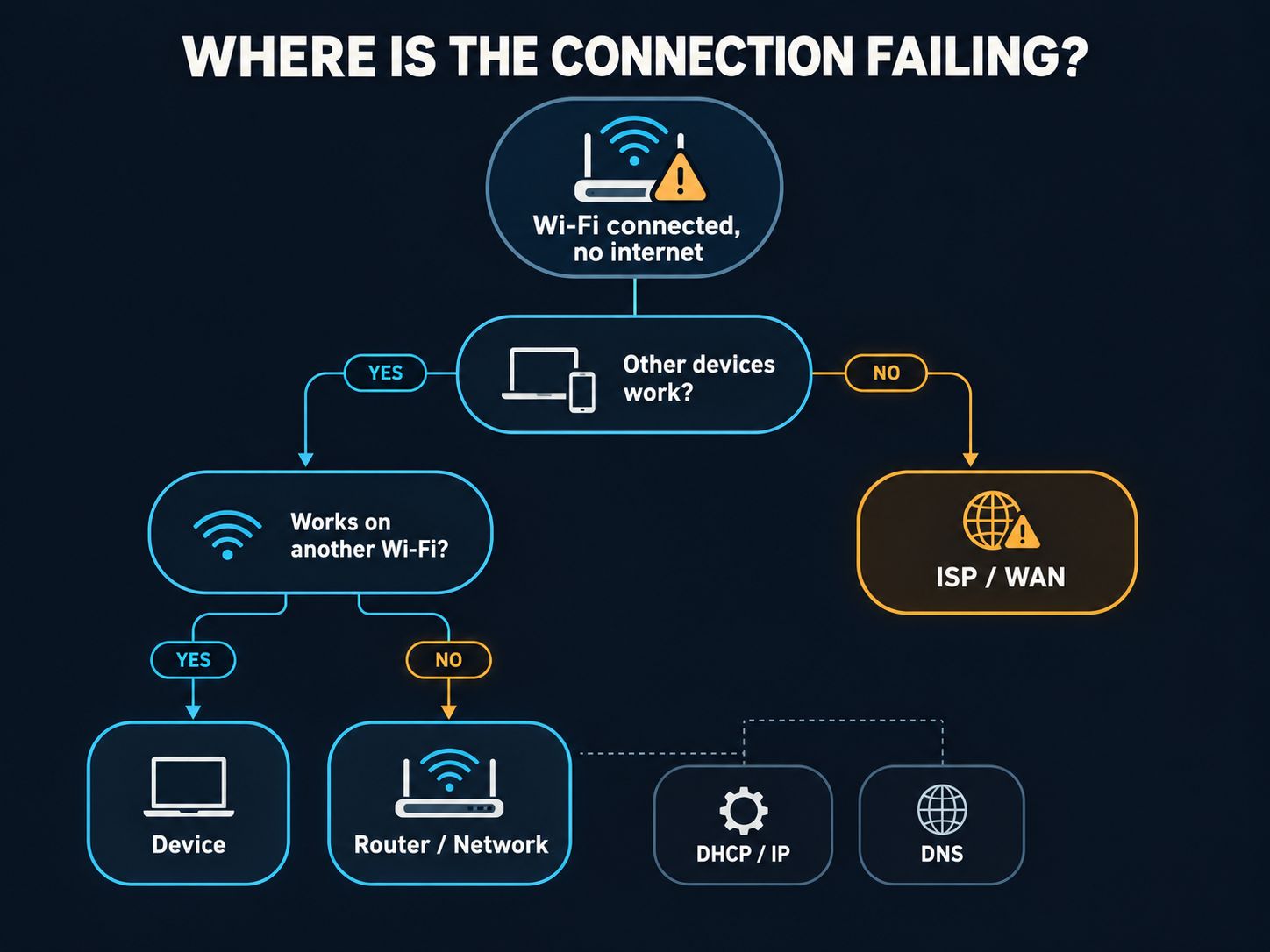
The result should identify a likely fault area, not claim certainty. Useful outcomes are Device, Router or Local Network, ISP or WAN, DHCP/IP Assignment, DNS Resolution, Captive Portal, or Needs Further Testing.
Privacy and tool limitation
A normal website cannot silently inspect your Wi-Fi adapter, router configuration, Windows network stack, or private LAN. This troubleshooter should therefore use the symptoms and test results you provide to generate a rule-based diagnosis.
It should never claim that SafeNetworkHub scanned your router when it did not.
For additional diagnostic utilities, explore SafeNetworkHub’s Network Security Tools and Guides or browse the complete Free Cybersecurity Tools library.
What Does “Connected but No Internet” Actually Mean?
It means the local Wi-Fi connection succeeded, but the complete path to an online service did not.
The path normally looks like this:
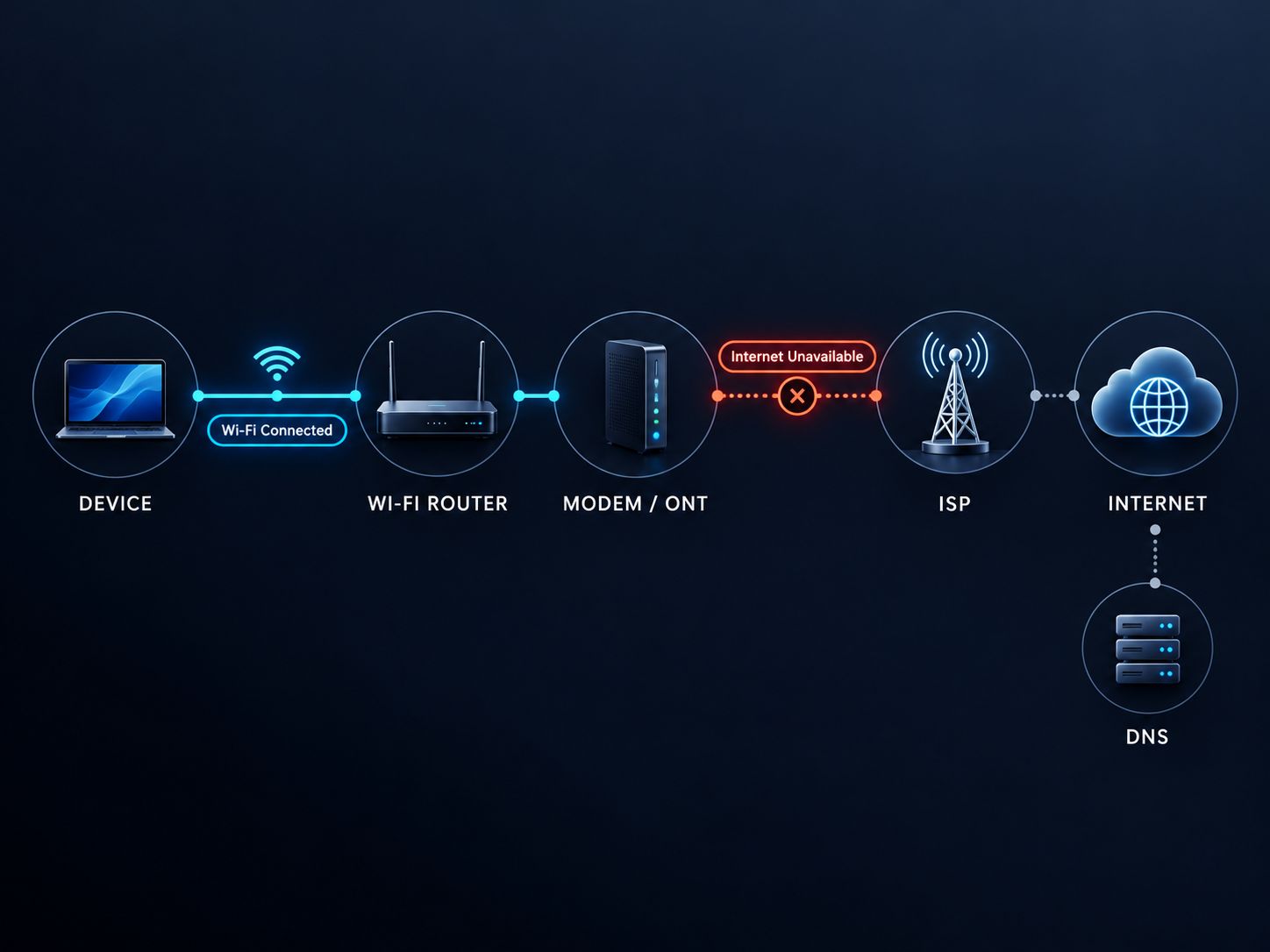
DNS also matters because applications usually need to translate names such as example.com into network addresses before connecting.
That creates an important distinction:
Full Wi-Fi bars tell you that the wireless radio link is available. They do not prove that your ISP connection, DNS resolver, or application is working.
Key Point: The goal is not to “fix Wi-Fi” immediately. The goal is to find the first part of the connection path that is failing.
How to Fix No Internet Access WiFi Without Resetting Everything
Start with low-risk checks and increase the level of intervention only when the evidence points in that direction.
| Order | Action | Use it when | Risk |
|---|---|---|---|
| 1 | Test another website/app | One service appears unavailable | None |
| 2 | Test another device | You need to separate device from network failure | None |
| 3 | Check ISP status and router indicators | Multiple devices are offline | None |
| 4 | Restart device/router/modem | Temporary state may be stuck | Low |
| 5 | Forget and reconnect to Wi-Fi | One device is affected | Low |
| 6 | Check VPN, proxy, DHCP and DNS | Connection remains device-specific | Low to moderate |
| 7 | Reset device networking | Simpler fixes failed | Moderate |
| 8 | Factory-reset router | Configuration is known and other router fixes failed | High |
A router restart and a router factory reset are not the same action. Restarting preserves configuration. A factory reset can erase the Wi-Fi name, password, WAN settings, PPPoE credentials, VLAN configuration, custom DNS, guest networks and other provider-specific settings.
Warning: Do not make a factory reset your first serious troubleshooting step.
Connected to WiFi but No Internet While Other Devices Work
If other devices use the same Wi-Fi normally, begin with the affected device—not the ISP.
First, test that device on an unrelated network such as a phone hotspot.
If it works on the hotspot but not your home Wi-Fi, the failure is tied to the relationship between that device and your home network. A stale DHCP lease, saved network profile, router filtering rule, manual DNS setting, or compatibility issue becomes more plausible.
If the same device also fails on the hotspot, the evidence shifts toward the device itself. VPN software, proxy configuration, security filtering, the network adapter, or the operating-system network stack deserves attention.
This two-network comparison is more informative than repeatedly restarting the home router.
Share This Insight: “If the problem follows the device to another network, troubleshoot the device. If it stays with one Wi-Fi network, troubleshoot that network.”
Windows No Internet Access WiFi: Windows 11 and Windows 10
On Windows, inspect the actual network configuration before running reset commands.
Open Command Prompt and enter:
Find the active wireless adapter and look for its IPv4 address, default gateway and DNS servers.
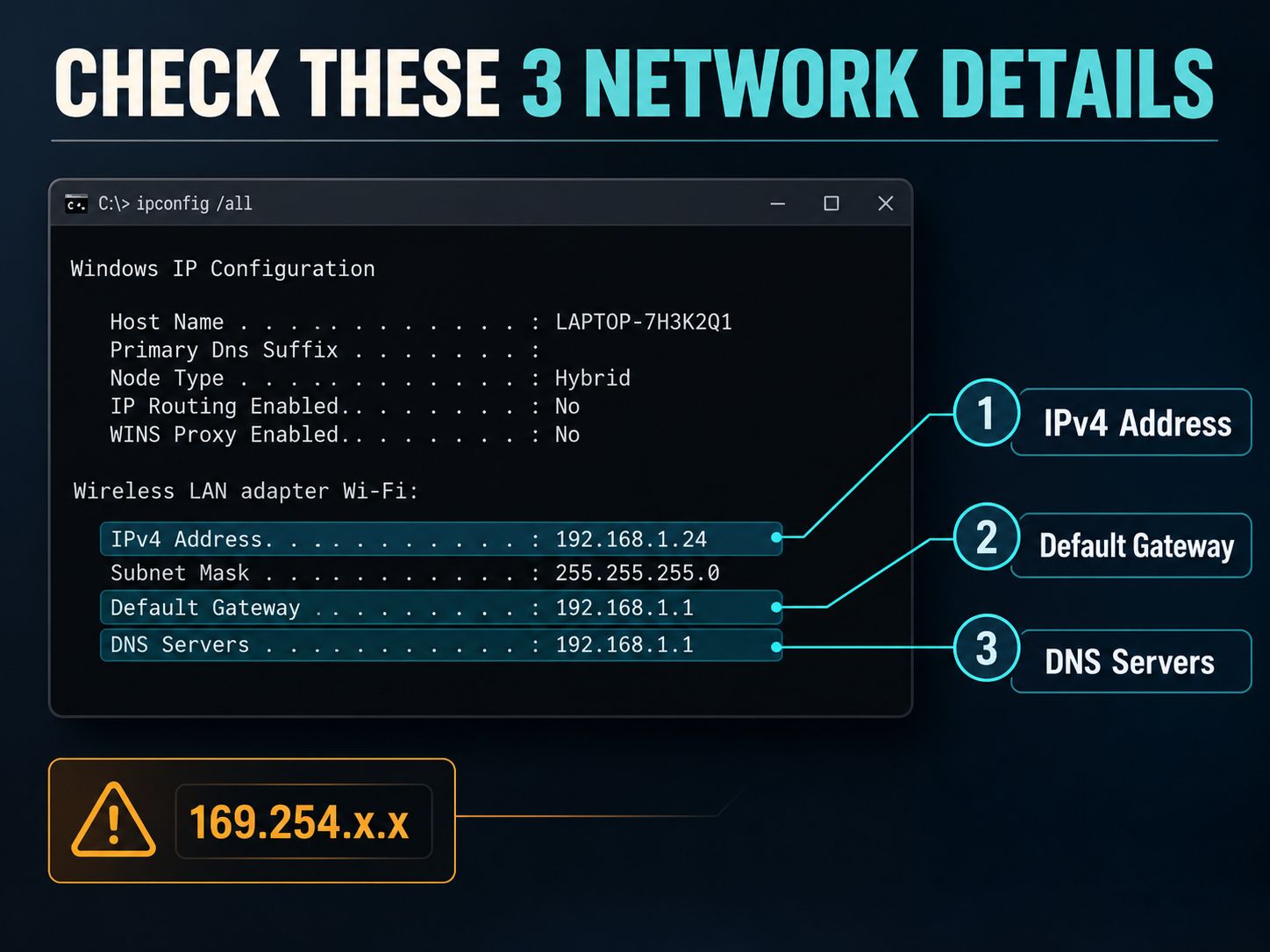
Microsoft’s current Wi-Fi troubleshooting guidance specifically recommends IP renewal, DNS cache clearing, proxy checks and checking whether Windows has received an address beginning with 169.254. Microsoft also says Network Reset should be used after earlier troubleshooting steps have failed. Microsoft Support
If Windows needs a fresh DHCP lease:
If name resolution appears stale:
To test DNS more directly:
If nslookup returns an address, DNS resolution is functioning for that test. If it times out or reports that the DNS server cannot answer while other internet connectivity works, investigate the configured resolver.
You can also test your router’s local address:
A successful reply supports local connectivity between the PC and router. A failed ping is useful evidence but is not absolute proof of a broken route because some devices can be configured not to answer ICMP echo requests.
For users trying to understand the relationship between an IPv4 address and its network, SafeNetworkHub’s Subnet Calculator can explain the subnet, mask and address range. It does not test whether your PC is actually online.
Do not reset Windows networking too early
Windows Network Reset removes installed network adapters and restores their settings to defaults. VPN clients and virtual networking software may need to be configured again afterward.
Use it after checking the simpler causes, not before.
For a broader post-fix review of a Windows computer’s defensive settings, the Home Computer Security Assessment covers operating-system updates, firewall, malware protection, encryption and related controls.
IPv4 No Internet Access WiFi and the 169.254 Address
A 169.254.x.x IPv4 address is a valuable diagnostic clue because it normally means Windows could not obtain a normal address from DHCP.
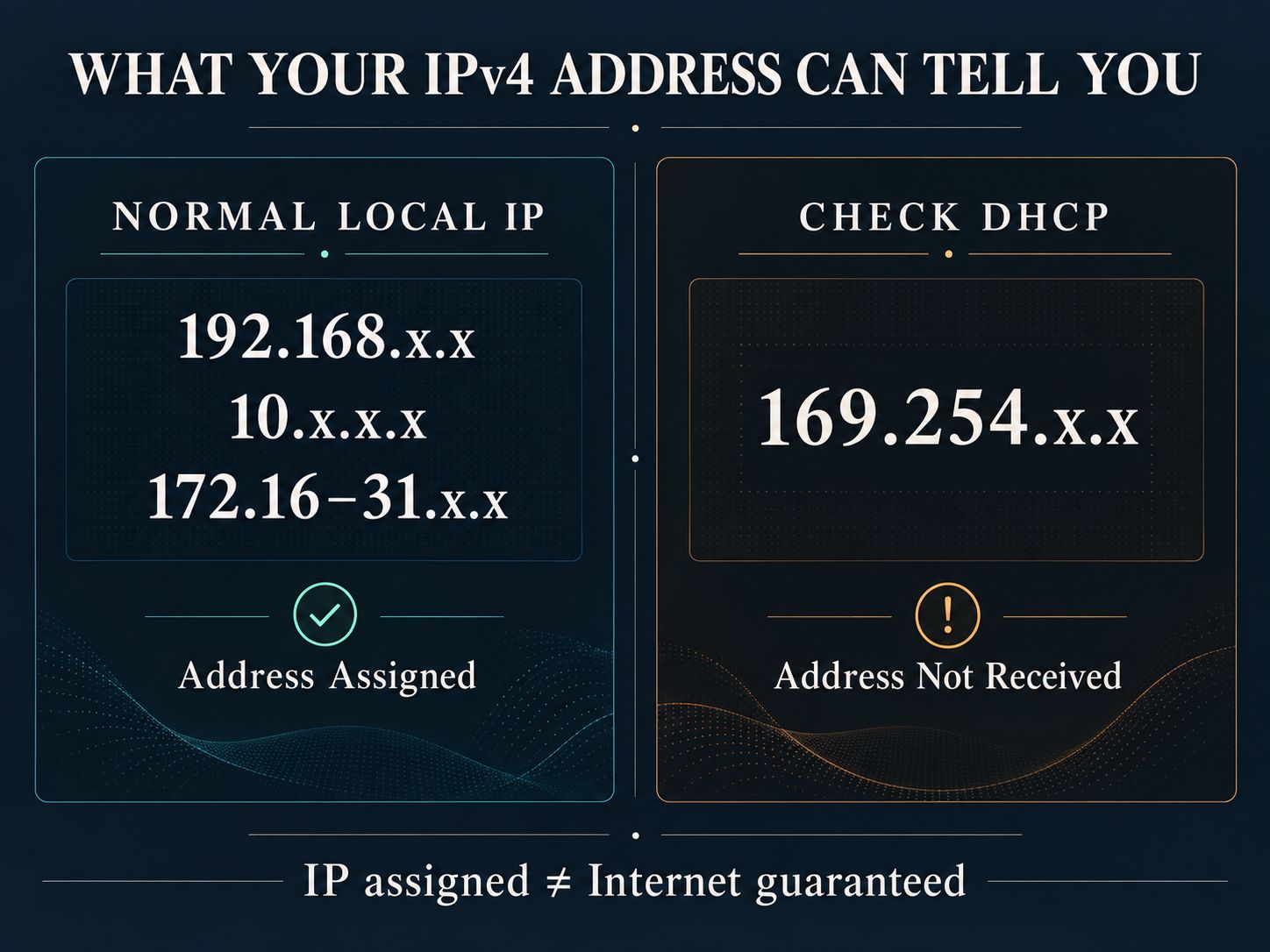
A typical home router instead assigns a private address from ranges such as:
Seeing one of those addresses does not prove the internet works. It simply means IP assignment progressed further than it did with an automatic 169.254.x.x address.
When 169.254.x.x appears, focus first on Wi-Fi reconnection, the router’s DHCP service, IP renewal and whether other devices are receiving normal addresses.
Do not disable IPv6 simply because IPv4 reports no internet access. Changing an unrelated protocol can hide the original failure and create another variable.
How to Tell Whether DNS Is Really the Problem
DNS is likely only when the connection can reach the internet but cannot reliably resolve hostnames.
One common mistake in Wi-Fi troubleshooting articles is to recommend changing DNS immediately. That can appear to fix some cases, but it does not diagnose an ISP outage, broken gateway, missing DHCP address or failed wireless adapter.
A better sequence is to confirm that you have a sensible local IP and gateway, then test name resolution with nslookup.
SafeNetworkHub’s DNS Lookup tool is useful for inspecting the public DNS records of a domain. It does not read the DNS servers configured on your laptop or router.
Likewise, the DNS Security Checker evaluates public domain-security records such as DNSSEC, CAA, SPF and DMARC. It should not be presented as a tool that repairs a home Wi-Fi resolver.
That distinction matters because a useful troubleshooting page should explain the limits of its own related tools rather than linking to them as if they solve a different problem.
Pro Tip: Change DNS only after your symptoms actually point toward DNS.
No Internet Access WiFi on Android
On Android, first determine whether the phone fails on one Wi-Fi network or every Wi-Fi network.
Google’s current Android troubleshooting guidance recommends restarting the device, comparing Wi-Fi with mobile data, verifying the Wi-Fi connection, moving closer to the router when signal is weak and restarting the home router when appropriate. Google Android Help
If your Android phone works on another Wi-Fi network, focus on the original router or saved connection. If it cannot use multiple unrelated Wi-Fi networks, the phone deserves more attention.
Forget the affected network and reconnect before resetting all network settings.
No Internet Access WiFi Samsung
On a Samsung Galaxy device, menu names vary by One UI version, but the diagnostic order should stay conservative: restart, verify the Wi-Fi network, forget and reconnect, check whether other devices work, and use the network-settings reset only after simpler checks fail.
No Internet Access WiFi Huawei
On Huawei devices, use the same isolation test. Public Wi-Fi adds another possibility: the login or captive-portal session may have expired even though the device still shows that it is associated with the access point.
If this happens at a hotel, airport, university or café, forgetting and reconnecting to the network may trigger the authentication page again.
WiFi Connected but No Internet After Reset
The correct fix depends on what you reset.
| What was reset? | What may have changed? | What to check next |
|---|---|---|
| Windows network settings | Adapters and network configuration returned to defaults | Reconnect Wi-Fi, check VPN/virtual adapters and retest |
| Android/Samsung network settings | Saved Wi-Fi and Bluetooth configuration may be removed | Rejoin the Wi-Fi network and retest |
| Router restart | Configuration normally remains intact | Wait for WAN service to reconnect |
| Router factory reset | ISP and custom router configuration may be erased | Check WAN/PPPoE/VLAN/provider configuration |
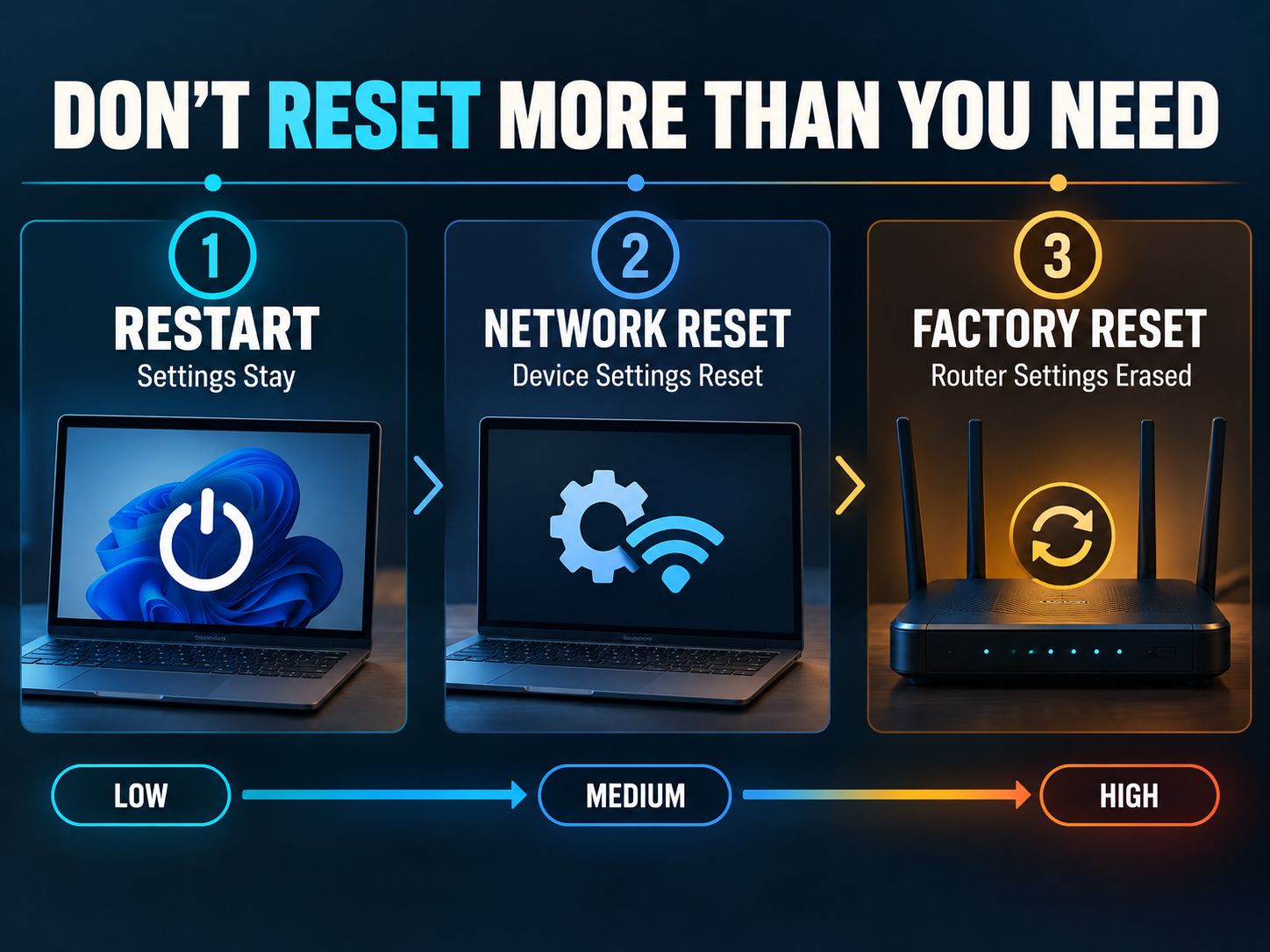
This distinction is especially important when the WiFi connected but no internet after reset problem began immediately after pressing a physical reset button on the router.
A router can broadcast a perfectly normal Wi-Fi network while its WAN configuration is incomplete.
A Better Three-Layer Test for Difficult Cases
When simple fixes fail, test local networking, name resolution and application connectivity separately.
Use the result of ipconfig /all to confirm that the device has a plausible address and gateway.
Use a gateway test to check the local path between your computer and router.
Use:
to examine DNS resolution.
Then test more than one normal HTTPS website in a browser. If DNS resolves but browsers still fail, look at proxy settings, VPN software, security filters, browser configuration and the wider route.
Avoid interpreting one failed ping to a public server as definitive proof of an outage. Internet hosts can restrict ICMP even while web traffic remains available.
This layered method is one of the most important differences between diagnosis and guesswork.
Share This Insight: “IP assignment, local routing, DNS and web access are separate checks. Test them separately instead of treating ‘internet’ as one switch.”
Why Do I Have Wi-Fi but No Internet Access?
Because your device can successfully communicate with the wireless access point while a later part of the connection fails.
The failure could be between the router and ISP, inside DNS resolution, in the device’s IP configuration, in a VPN or proxy, or in the specific service you are trying to reach.
The Wi-Fi icon alone cannot tell you which one.
How to Fix Wi-Fi With No Internet Access?
Start by determining whether the problem affects one website, one device or every device.
One website failing suggests a service or browser-specific issue. One device failing suggests local configuration. Every device failing pushes the investigation toward the router, modem/ONT or ISP.
Only move to resets after these comparisons.
Why Is My Wi-Fi Connected but No Internet Is Loading?
The device may have a valid local wireless connection but lack a working route, DNS response or application-layer connection to the internet.
Try more than one website and one application before concluding that the whole connection is down.
If a single website fails while everything else works, changing router settings is unlikely to help.
Why Can’t I Access the Internet Through Wi-Fi?
Common causes include ISP failure, router WAN problems, DHCP failure, DNS problems, VPN or proxy interference, captive portals and device-specific network configuration.
The fastest route to the correct cause is comparison: another service, another device and another network.
When Should You Stop Troubleshooting and Contact Your ISP?
Contact your provider when the evidence points beyond your own device or router settings.
If multiple devices are offline, the modem or fiber ONT shows an abnormal WAN/LOS condition, the router cannot obtain an upstream connection, or service stopped immediately after provider equipment or provisioning changed, further laptop resets are unlikely to solve the root cause.
If only one device is affected while every other device works, ISP escalation is usually premature.
After Internet Access Returns, Check the Network’s Security
Connectivity and security are separate questions. A network can work perfectly and still be poorly configured.
Once the connection is stable, use the Wi-Fi Security Type Finder to identify whether the network uses WPA3, WPA2, an outdated protocol or an open network.
For configuration recommendations covering encryption, WPS, firmware, router administration and IoT segmentation, continue with the Wi-Fi Security Recommendation Tool.
Home users who want to review more than the router can use the Home Cybersecurity Checker to assess Wi-Fi, accounts, computers, browsers and backups together.
A business troubleshooting a wider office environment can move from connectivity into the Business Network Security Assessment. Smaller organizations can also benchmark their defensive controls with the Small Business Network Security Score, while teams concerned about logging and operational visibility can review the Network Monitoring Assessment.
These tools do not replace the no-internet troubleshooter. They address what to review after basic connectivity has been restored.
Our Troubleshooting Perspective
The most useful question is not “Which fix should I try first?”
It is:
“What still works?”
If another site works, investigate the service. If another device works, investigate the device. If the device works on another network, investigate the original network. If nothing works anywhere on the device, focus on the device. If nothing works for anyone on the home network, move upstream toward the router and ISP.
That approach reduces unnecessary resets and gives each troubleshooting action a reason.
Frequently Asked Questions
Can Wi-Fi say connected when the internet is down?
Yes. Your device can remain connected to the local wireless router while the router’s upstream internet connection is unavailable.
Why does my Wi-Fi work on my phone but not my laptop?
If both devices are using the same Wi-Fi and only the laptop fails, investigate the laptop’s saved network, DHCP address, DNS, VPN, proxy, network adapter and operating-system configuration.
What does 169.254.x.x mean on Windows?
It usually indicates that Windows did not obtain a normal IPv4 address from the router’s DHCP service. Check the Wi-Fi connection, DHCP availability and IP renewal before changing unrelated settings.
Does ipconfig /flushdns fix no internet?
It clears the Windows DNS resolver cache. It can help with some name-resolution problems, but it cannot repair an ISP outage, broken router WAN connection or failed DHCP assignment.
Should I change DNS to fix connected but no internet?
Not automatically. Check whether DNS is actually failing first. If your device has no usable IP or cannot reach the router, changing DNS will not address the underlying problem.
Can a VPN cause Wi-Fi connected but no internet?
Yes. VPN routing, kill-switch behavior, virtual adapters or filtering can interfere with normal connectivity. Temporarily disconnecting the VPN is a useful diagnostic test.
Should I factory-reset my router?
Only as a later-stage action when you know how to restore its configuration. A factory reset can erase ISP-specific and custom network settings.
Why does Wi-Fi connect after a router reset but still have no internet?
The router’s wireless access point may be functioning while its internet-facing WAN configuration is missing or incorrect.
Why does public Wi-Fi say connected but have no internet?
The captive-portal login may not have completed or may have expired. Forgetting and reconnecting to the network can sometimes trigger the sign-in page again.
What should I do if none of the fixes work?
Test the device on a second unrelated network and test a second device on the original network. Those two comparisons tell you whether to continue with the device, the home network or the ISP.
Final Takeaway
A no internet access WiFi problem becomes much easier to solve when you diagnose the connection in layers.
Do not begin with a factory reset or a random DNS change. Determine whether the failure affects one service, one device or every device; check IP assignment; test the local network and DNS separately; and escalate only when the evidence moves upstream.
If you solved the problem differently, share the device, operating system, exact symptom and the fix that worked in the comments. A specific real-world result is far more useful to another reader than simply saying, “Restart the router.”
Share This Network Security Guide
Help IT professionals, network engineers, and students strengthen their cyber defense.
Zubayer Hasan
LinkedIn Profile →Md Zubayer AL Hasan is the lead cybersecurity platform architect and security researcher at SafeNetworkHub. Dedicated to zero-knowledge cryptography, infrastructure vulnerability auditing, and building accessible privacy tools.
0 Comments
No comments yet
Have a question or insight about this network security guide? Be the first to share your thoughts!
Write the first comment →