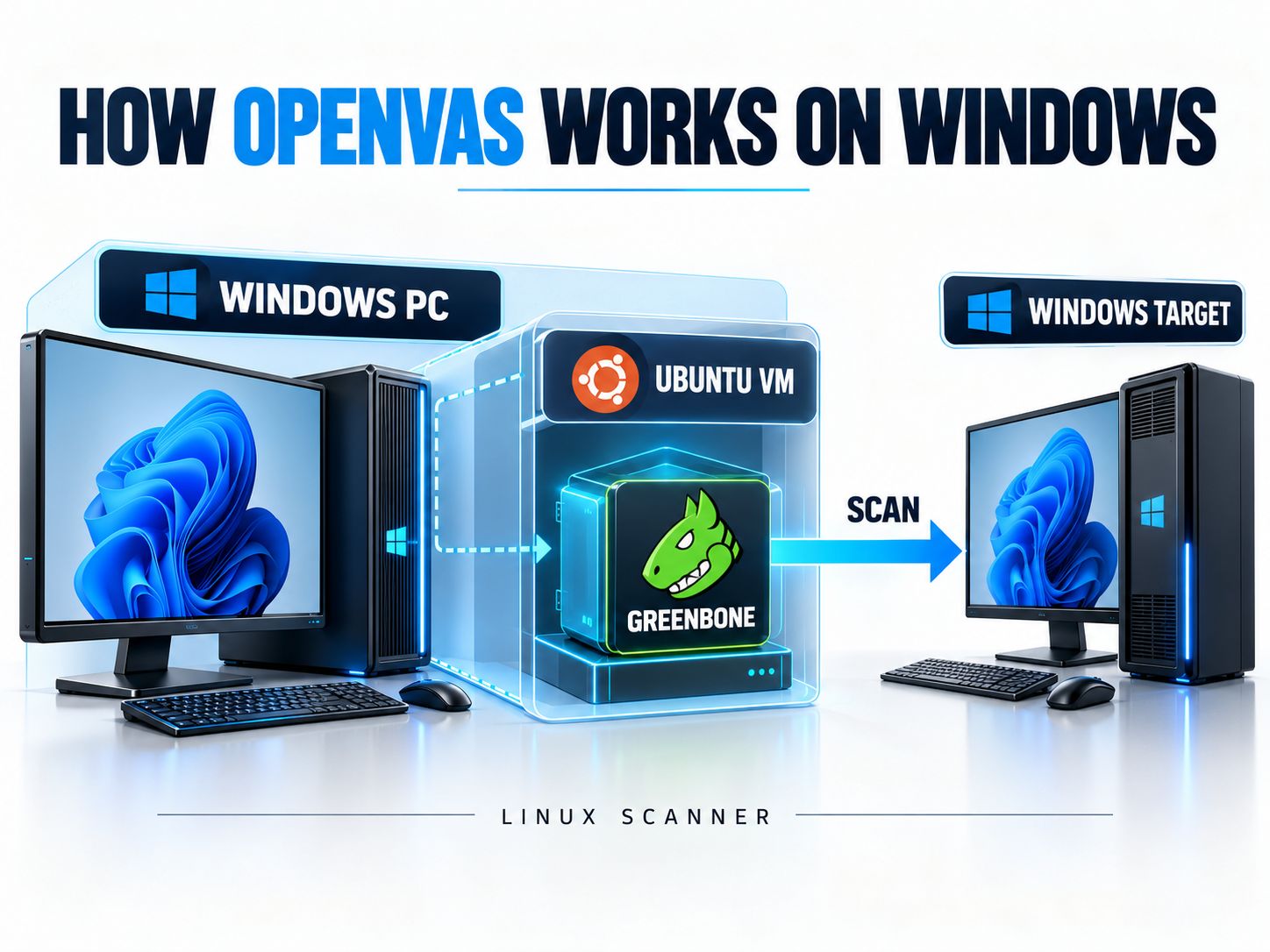
OpenVAS Windows support does not mean you can install Greenbone Community Edition directly with a Windows installer. The open-source scanner runs in Linux, but Windows users can host it inside a virtual machine, explore Docker Desktop with WSL2, or use a separate Greenbone virtual appliance. This guide shows where to download the software, how to set up a working Linux-based scanner on Windows, how to access its dashboard securely, and when Nessus may be a better choice.
Quick answer: For a Windows PC, use an Ubuntu virtual machine with Greenbone Community Containers if you want the open-source Community Edition. If you prefer a prepared virtual appliance, evaluate OPENVAS FREE—but understand that it is a different product.
Can You Install OpenVAS Directly on Windows 10 or 11?
No. Greenbone Community Edition does not provide an official native Windows .exe or .msi installer for its complete vulnerability management stack. You need a Linux environment to operate the scanner.
The good news is that the Linux host can be a virtual machine running on your Windows computer. You can also use a Windows browser to manage scans and assess Windows endpoints across your authorized network.
Which deployment method is right for you?
| Your situation | Recommended approach | What to expect |
|---|---|---|
| Windows PC, want open-source Community Edition | Ubuntu VM + Community Containers | Full Linux-based community stack; requires maintenance |
| Windows developer already using WSL2 | Docker Desktop + WSL2 | Experimental option; verify networking and scanner behavior |
| Want an easier Greenbone virtual appliance | OPENVAS FREE | Separate appliance with feature and update restrictions |
| Already have a Linux server | Community Containers on Linux | No Windows VM required |
| Must install the scanner directly on Windows | Nessus or another Windows-supported scanner | Different licensing, features, and maintenance requirements |
Important distinction: Running a Linux virtual appliance on Windows is not the same as having a native Windows scanner.
Before choosing a deployment, the Vulnerability Management Readiness Checker can help identify whether your environment has suitable scanner infrastructure, network access, and credential-management processes.
Where Can You Download Greenbone Community Edition for Windows?
Greenbone Community Edition is distributed as Linux-compatible open-source software and container images. There is no official standalone Windows Community Edition download.
Two Greenbone offerings deserve special attention.
Greenbone Community Edition
Community Edition includes the open-source components needed to run and manage vulnerability scans.
The documented container approach uses Docker Compose to deploy the scanner, manager, web interface, database, and vulnerability-feed components.
Start with the official Greenbone Community Containers documentation.
This is the appropriate starting point if you want to install OpenVAS Community Edition yourself.
OPENVAS FREE
OPENVAS FREE is a separate, no-cost virtual appliance that Greenbone describes as usable on Windows, Linux, and macOS virtualization hosts.
It is not a native Windows executable or an identical package of the open-source Community Edition.
Greenbone identifies several differences:
- It is a preconfigured virtual appliance.
- It uses the Community Feed.
- It provides a restricted set of product features.
- Feed updates are available, but the appliance software itself cannot be upgraded in the same way as supported commercial products.
- Standard enterprise support is not included.
You can review the official OPENVAS FREE appliance and download information.
What about the OpenVAS GitHub download?
The greenbone/openvas-scanner repository contains the scanner’s source code.
Downloading that repository alone will not install the full Greenbone management interface, PostgreSQL database, and supporting services.
For someone searching openvas download, openvas greenbone community edition download, or openvas download windows, the official container instructions are generally a more practical starting point than building the scanner from source.
Security note: Avoid unfamiliar websites offering a complete “OpenVAS Windows installer.” Verify the publisher and installation method before running downloaded security software.
What Hardware Do You Need to Run OpenVAS on Windows?
Greenbone’s Community Container documentation recommends four CPU cores, 8 GB RAM, and 60 GB of available storage for the container deployment.
| Resource | Minimum | Recommended |
|---|---|---|
| CPU | 2 cores | 4 cores |
| RAM | 4 GB | 8 GB |
| Storage | 20 GB | 60 GB |
These requirements are for Greenbone’s container environment, not the combined Windows host and virtual machine.
For example, a Windows laptop with 16 GB RAM may be able to allocate 8 GB to Ubuntu while retaining memory for Windows. Actual performance depends on other applications and the system’s available resources.
A 60 GB virtual disk is a more comfortable starting point than the 20 GB minimum, particularly when storing feeds, logs, and scan results.
You will also need:
- Hardware virtualization enabled.
- A compatible hypervisor.
- A working Ubuntu installation.
- Docker Engine and Docker Compose.
- Internet access to retrieve container images and vulnerability data.
- Network reachability to systems you have permission to scan.
Do not treat these numbers as guarantees of acceptable performance for large production networks. Scan concurrency, data retention, and target count affect resource requirements.
How to Install OpenVAS Community Edition on Windows Using Ubuntu
The following method runs Ubuntu in a Windows-hosted virtual machine and installs the official Greenbone Community Containers inside Ubuntu.
It is designed for a learning or evaluation environment. Greenbone explicitly states that its Community Container tutorial is not intended as a production deployment guide.
Step 1: Create an Ubuntu virtual machine
Install Ubuntu 24.04 LTS in Hyper-V, VMware, or VirtualBox.
A practical evaluation configuration is:
- Four virtual CPU cores.
- Eight gigabytes of RAM.
- Sixty gigabytes of virtual disk storage.
- A virtual network configuration appropriate for the authorized systems you want to assess.
Install Ubuntu updates after the initial setup.
A hypervisor’s default network configuration does not necessarily give the VM access to other devices on your LAN.
Check the guest’s assigned address:
Keep that address available for the Windows-to-Ubuntu connection later.
For a scan targeting a private network, use the Subnet Calculator to check network boundaries before defining an assessment scope.
Step 2: Install Docker inside Ubuntu
Install Docker Engine and the Docker Compose plugin using the supported method for your Ubuntu environment.
You should install Docker in the Linux guest, not assume that a Windows Docker installation automatically configures the guest.
Verify the installation:
Prepare the tools needed for the Greenbone configuration download:
If Docker requires elevated privileges, configure authorized access according to its documentation. Membership in the Docker group provides powerful host-level privileges and should be limited to trusted administrators.
Step 3: Download the current Greenbone Compose configuration
Create a directory:
Download the official configuration:
Validate it:
If validation returns no errors, the Compose file has passed its configuration check.
Why compose.yaml matters: Older guides may refer to docker-compose.yml. Greenbone’s current deployment documentation uses compose.yaml, and its newer container architecture includes Nginx for the web interface.
Step 4: Download and start the Greenbone containers
Pull the required images:
Start the deployment:
Inspect the service state:
Follow the logs:
Press Ctrl+C to stop watching the logs. This does not stop the containers.
What should you expect? Some services run continuously, while others initialize configuration or copy vulnerability data and then finish. Do not assume every container must remain running permanently.
Step 5: Change the administrator password
Greenbone’s documented setup creates an initial administrator account with the credentials admin / admin.
Change the password immediately.
Replace the example value before executing the command.
A password supplied on a command line may be retained in shell history or exposed through process inspection. Use appropriate secret-handling procedures and restrict access to the management environment.
Step 6: Confirm the web interface works inside Ubuntu
The current default Compose configuration serves Greenbone Security Assistant over HTTPS.
From a browser running inside Ubuntu, visit:
https://127.0.0.1
The default configuration uses a self-signed certificate, so a certificate warning is possible.
For an isolated lab, verify that you are connecting to the intended local service before accepting a certificate exception.
A working login screen confirms that the interface is accessible. It does not yet prove that all vulnerability feeds have loaded.
Step 7: Access the Greenbone dashboard from Windows
This is the step many generic OpenVAS installation guides miss.
Greenbone’s default container configuration binds the web service to 127.0.0.1 on the Linux host.
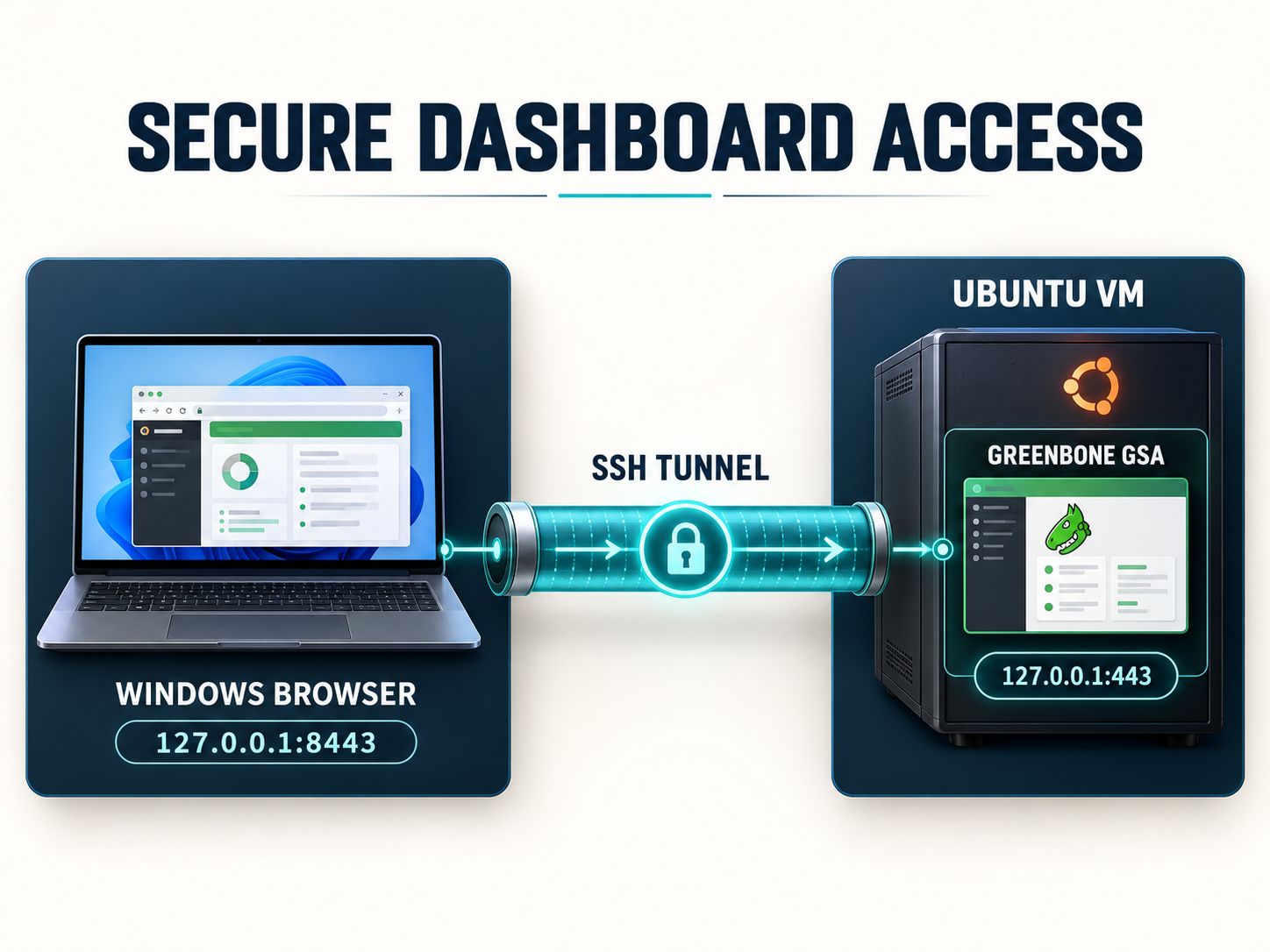
If you open https://127.0.0.1 in your Windows browser without configuring access, Windows connects to its own loopback interface—not the separate Ubuntu VM.
One way to solve this without broadly exposing the dashboard is an SSH tunnel.
First, install and enable an SSH server inside Ubuntu if one is not already configured:
Ensure the Windows host can reach the guest over SSH on the permitted virtual network. Restrict SSH access to trusted systems.
Next, open PowerShell on Windows and run:
Replace YOUR_UBUNTU_USER and VM_IP_ADDRESS with the actual Ubuntu username and reachable VM address.
This command forwards Windows port 8443 through the encrypted SSH connection to the Greenbone HTTPS service on the Ubuntu VM.
Keep that PowerShell session open.
Now visit this address in your Windows browser:
https://127.0.0.1:8443
Use your Greenbone administrator credentials to log in.
If Windows cannot reach the VM over SSH, review the hypervisor’s host-only, bridged, or NAT networking configuration. An SSH port-forward on the hypervisor may be necessary for some NAT-only arrangements.
Security warning: Do not expose the Greenbone dashboard to the internet merely to make Windows browser access easier. An SSH tunnel is one option for a controlled laboratory setup.
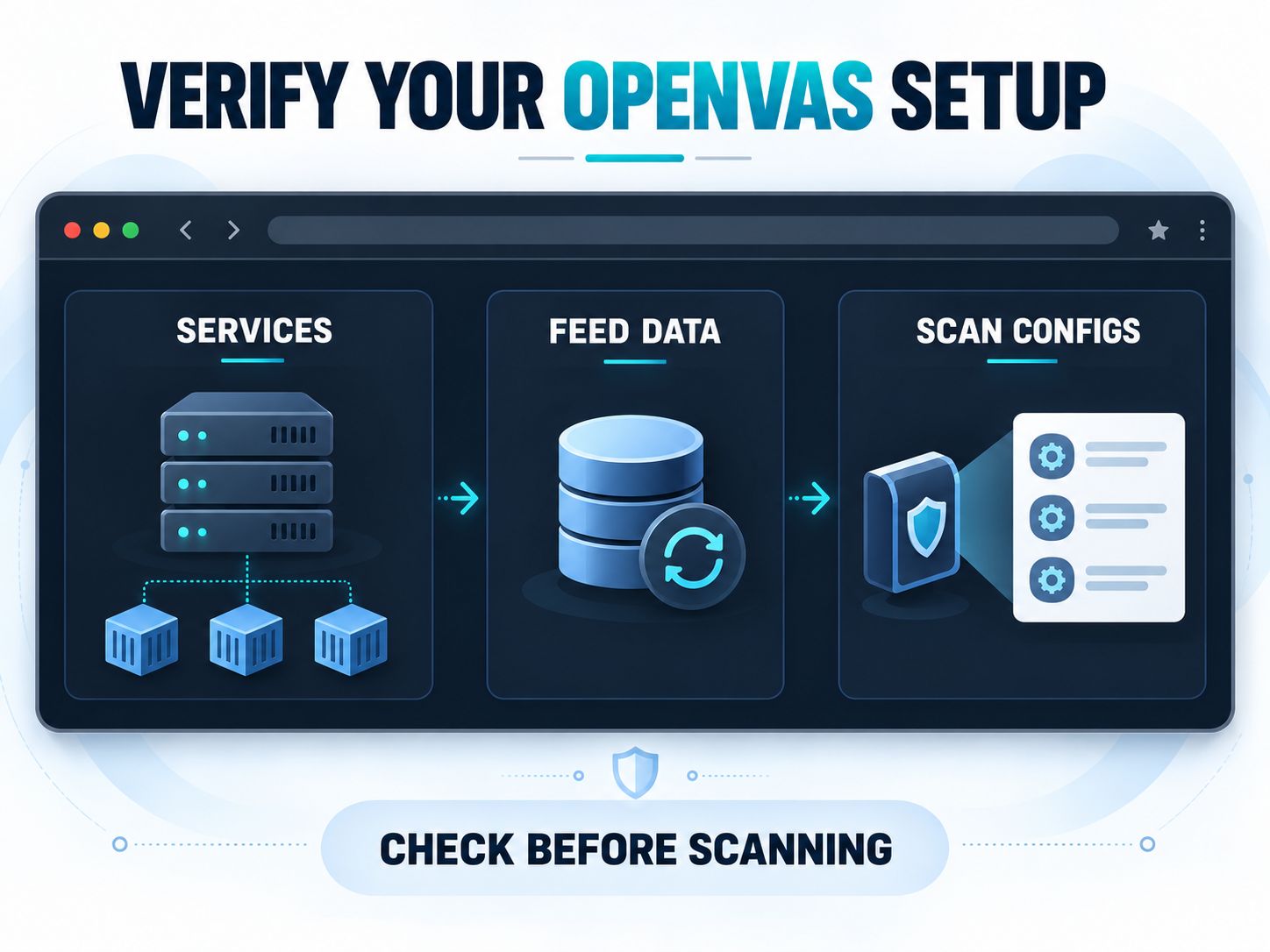
Step 8: Verify the vulnerability feeds
A finished Docker startup does not mean the scanner is ready.
Greenbone Community Containers retrieve vulnerability information through dedicated data images. Their services must then load that information into the scanner and management database.
Check the scanner logs:
Greenbone documents a successful vulnerability-test loading message resembling:
You can also inspect manager logs:
Useful indicators include completion of VT database updates and successful SCAP data processing.
In the browser, confirm that scan configurations such as Full and Fast are available.
The initial feed import may take considerably longer than container startup.
Installation success test: You should be able to log in, confirm that the relevant feed data has loaded, create an authorized target, and start a valid scanning task.
Can You Install OpenVAS Using Docker Desktop and WSL2?
Docker Desktop with WSL2 is an experimental alternative for experienced Windows users, but it is not the Windows deployment method described and validated in Greenbone’s official Linux container instructions.
WSL2 provides a Linux environment within Windows. Docker Desktop can use that environment to operate Linux containers.
However, network scanning adds requirements beyond those of a typical web application. Host discovery, raw network sockets, routing, and permissions can influence results.
If you investigate this approach:
- Enable WSL2 and install a compatible Ubuntu distribution.
- Configure Docker Desktop to use Linux containers.
- Enable integration with the chosen WSL2 distribution.
- Verify Docker Compose from the Linux shell.
- Follow the applicable Greenbone container steps.
- Test dashboard access, feed loading, host discovery, and scanner operation.
Do not assume that a functioning dashboard proves that network scanning behaves identically to a dedicated Linux installation.
If reliability matters more than convenience, prefer a dedicated Linux VM or appropriately managed Linux host.
How Do You Scan a Windows Computer with OpenVAS?
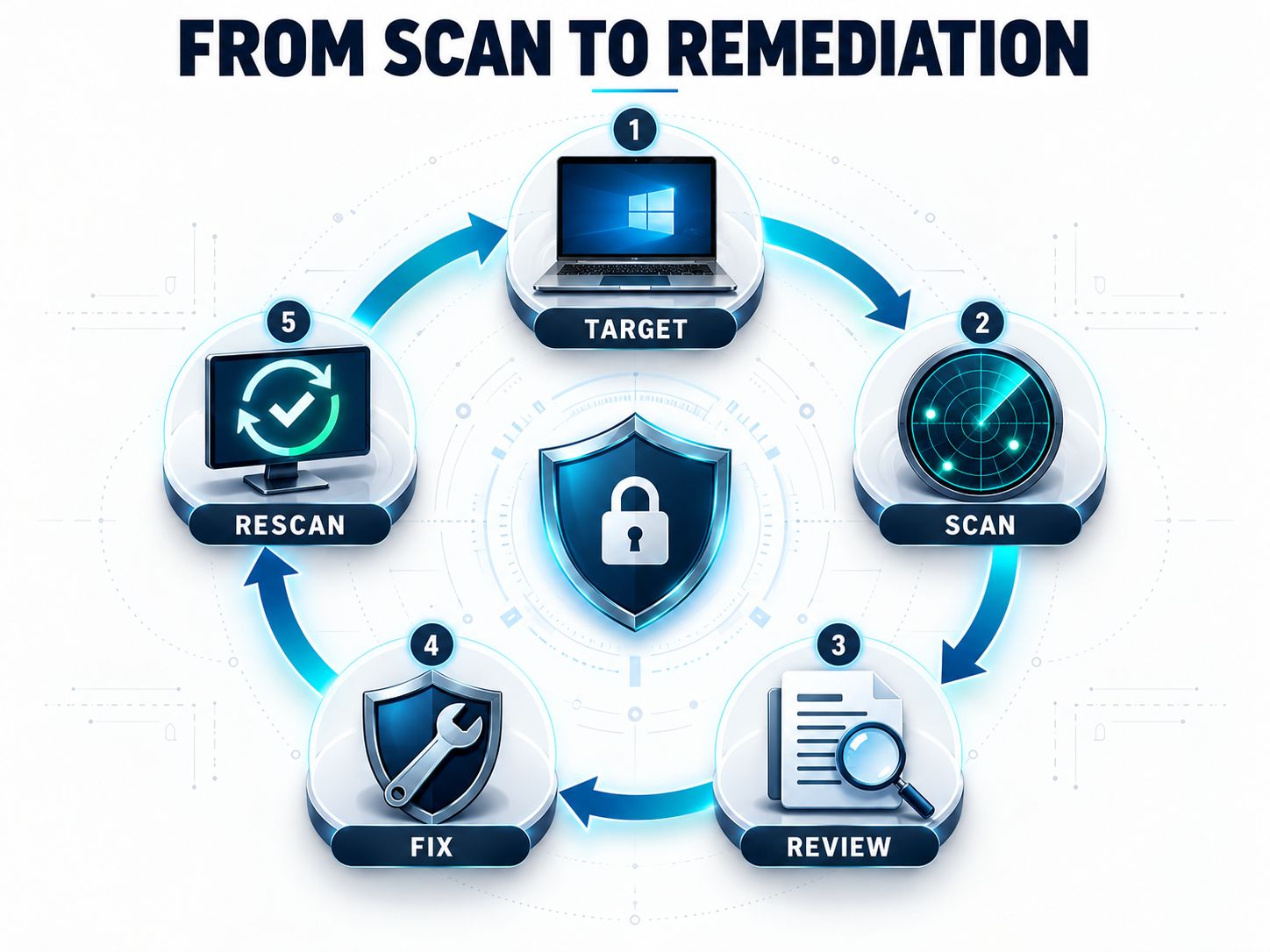
Create a target for a Windows device that the Linux scanner can reach, select a suitable vulnerability scan configuration, and review the results. You do not need to install OpenVAS on the Windows target.
Consider this illustrative lab arrangement:
| Component | Example |
|---|---|
| Windows host | Windows 11 |
| Scanner environment | Ubuntu VM with Greenbone Community Containers |
| Windows target | An authorized Windows test machine |
| Example target address | 192.168.56.20 |
| Scanner interface | Greenbone Security Assistant |
| Initial scan configuration | Full and Fast |
This is an example configuration, not a claim of a completed real-world scan.
Step 1: Define an authorized target
Open Greenbone Security Assistant and locate the Targets management screen.
Add a descriptive target name and the Windows device’s reachable IP address or hostname.
Check that the Linux VM has a network route to the target before proceeding.
The Network Security Assessment can help you organize network exposure and access-control considerations before scanning.
Step 2: Select a scan configuration
For an initial authorized vulnerability assessment, Full and Fast is a commonly used choice.
It performs vulnerability testing while using configuration and dependency information to avoid unnecessary checks.
Make sure the required vulnerability data has finished loading.
Step 3: Run the task
Create a scanning task, associate it with the target, select the configuration, and start the assessment.
Avoid running aggressive scans against sensitive devices during critical operating hours.
A vulnerability scan can generate significant network traffic and may affect fragile services.
Step 4: Interpret the report
After completion, review the affected host, service, vulnerability description, severity, detection evidence, and suggested remediation.
Suppose a report identifies an outdated web server component.
Before acting, determine whether the detected version is accurate, whether vendor backported patches are present, and whether the vulnerable feature is exposed.
Use the CVSS Vulnerability Scorer to understand severity scoring, but prioritize actual business risk rather than relying on the numerical score alone.
Step 5: Validate and rescan
Fix or mitigate confirmed findings according to your organization’s change-management process.
Then repeat the relevant assessment to determine whether the finding remains.
The Vulnerability Management Checklist can help document the transition from detection to remediation and verification.
What about authenticated Windows scanning?
Authenticated scans can provide additional information that a remote, unauthenticated scan cannot reliably determine.
Windows authentication settings, SMB access, permissions, firewall policy, and account security must be configured according to the scanner’s requirements.
Use dedicated credentials and the minimum permissions necessary for the selected checks. Never include administrator passwords in public scan reports or diagnostic screenshots.
OpenVAS vs. Nessus: Which Is Better for Windows Users?
Choose Greenbone Community Edition if open-source deployment and self-managed Linux infrastructure are your priorities. Choose an appropriate Nessus edition if native Windows installation or commercial features are more important.
| Feature | Greenbone Community Edition | Nessus Essentials | Nessus Professional |
|---|---|---|---|
| Native Windows scanner | No | Yes | Yes |
| Linux installation | Yes | Yes | Yes |
| Licensing model | Open-source community software | Proprietary, limited free license | Commercial subscription |
| Target limitations | No fixed community-license IP cap | Up to 5 IPs | Unlimited IPs under product licensing |
| Vulnerability content | Greenbone Community Feed | Tenable plugins with delayed updates | Tenable plugins with real-time updates |
| Authenticated scanning | Available | Depends on edition capabilities | Available |
| Reporting | Community Edition reporting capabilities | Restricted; no standard export | More extensive reporting and export |
| Commercial support | Not included with Community Edition | Not included | Included under commercial terms |
| Suitable for commercial use | Depends on deployment, licenses, and operational readiness | No | Yes |
Important 2026 licensing detail: Tenable currently describes Nessus Essentials as a free, non-commercial 30-day license covering up to 5 IP addresses, with plugin updates delayed by 30 days. Do not rely on older articles that describe a permanent 16-IP Essentials license.
Tenable also offers Essentials Plus, a separate option with different licensing terms.
Which is easier for a Windows beginner?
Nessus is easier to get started with if your main requirement is a directly installed Windows scanner.
Greenbone Community Edition requires more Linux and container knowledge.
Which is better for a cybersecurity student?
Community Edition offers flexibility for learning Linux-hosted vulnerability management.
Nessus Essentials provides a simpler entry point for a small number of targets, subject to its time and feature restrictions.
Neither option guarantees complete vulnerability detection.
Which is better for a small business?
Consider infrastructure expertise, target types, report requirements, feed updates, support availability, and commercial usage rights.
An organization with experienced Linux administrators may value Community Edition’s self-hosted flexibility.
An organization seeking vendor support or a conventional Windows deployment may prefer a commercial scanner.
You can use the Business Network Security Assessment to evaluate the surrounding security requirements before making a purchase or deployment decision.
Key Takeaway: OpenVAS vs. Nessus is not only about vulnerability detection. Windows compatibility, maintenance responsibilities, license restrictions, and available support should influence your decision.
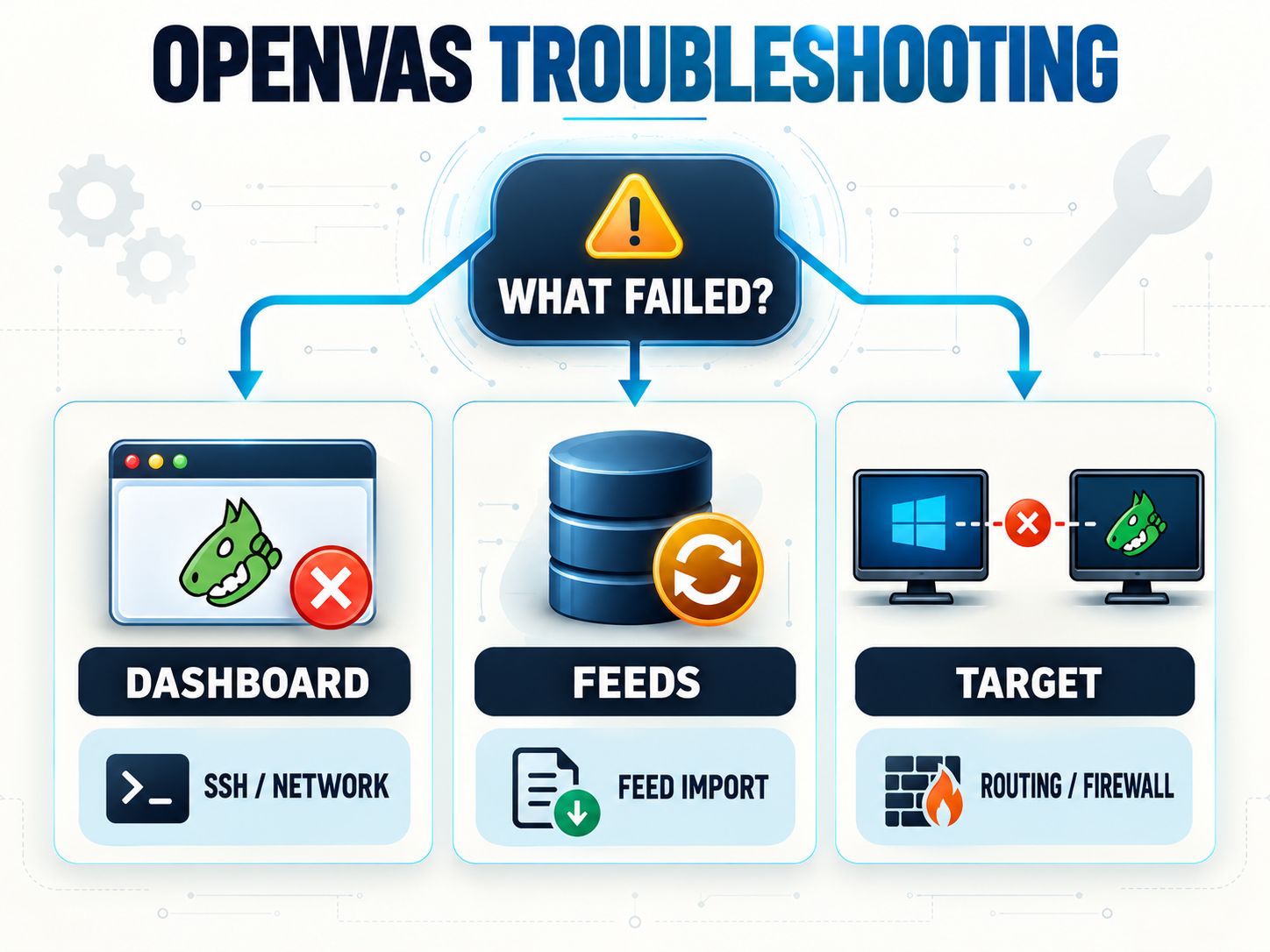
Why Is Greenbone Not Working After Installation?
The most common causes involve web-interface networking, incomplete feed initialization, container failures, insufficient resources, or an unreachable scan target.
| Symptom | What to check first | Likely next action |
|---|---|---|
| Windows browser cannot reach GSA | VM address, SSH connectivity, tunnel | Fix the host-to-guest access path |
| Browser shows a certificate warning | Local self-signed certificate | Verify the intended lab endpoint |
| Containers repeatedly restart | Service logs and resources | Check dependencies and available RAM/storage |
| No Full and Fast configuration | Feed import status | Confirm feed data and VT loading |
| Scan target appears unreachable | VM routing and target firewall | Validate authorized connectivity |
| Scan results seem incomplete | Authentication, test coverage, feed status | Review configuration and validate findings |
| Unexpected vulnerability reported | Evidence and installed software state | Investigate possible false positives |
Check container status and logs
Run:
For a specific component:
If the Windows target is not reachable, inspect network segmentation and firewall policy. Our Firewall Configuration Assistant can help review applicable rules.
Do not disable an entire firewall as a troubleshooting shortcut.
Why does the dashboard work but scans do not?
The dashboard, vulnerability manager, and scanning engine are separate components. A functioning browser interface does not prove the scanner service is healthy.
Confirm that the scanner is available, the feed is loaded, suitable scan configurations exist, and the target network is reachable.
Also verify that the chosen scan’s host-discovery method fits the target environment. A system that blocks certain discovery probes might be incorrectly treated as unreachable.
How Do You Update Greenbone Community Edition?
Update the deployment configuration, container images, and Community Feed as part of a managed maintenance process.
For the documented Community Container workflow, check for changes to the official Compose file before applying updates.
Then pull current images and reconcile the running services:
Greenbone’s feed workflow also makes an important distinction: downloading feed images is only the first stage. The relevant services must load their data before the updated vulnerability information is available to scans.
After updating, confirm that the feeds are current and that an authorized test scan still functions.
Back up persistent data before major changes.
Avoid running destructive commands such as docker compose down -v unless you explicitly intend to remove the deployment’s stored volumes and data.
For continuous operations, the Network Monitoring Assessment can help evaluate whether monitoring and incident-response processes are keeping pace with security changes.
How Can You Verify That Your OpenVAS Setup Is Actually Working?
Use an acceptance test that checks the entire workflow rather than stopping at a successful login.
Record the results of these ten checks:
- ☐ Ubuntu VM starts and has adequate resources.
- ☐ Docker Compose validates the current configuration.
- ☐ Greenbone services start without unresolved critical errors.
- ☐ Default administrator credentials have been replaced.
- ☐ The dashboard opens through the intended secure connection.
- ☐ Vulnerability tests and required supporting data finish loading.
- ☐ An authorized Windows test target is reachable.
- ☐ An appropriate scan configuration is available.
- ☐ A test scan completes and its findings can be reviewed.
- ☐ A follow-up scan can verify a documented change.
A useful evidence record includes the Ubuntu version, Docker version, Compose configuration date, scanner status, feed status, test scope, scan date, and any unresolved limitations.
Do not publish credentials, private network details, or sensitive vulnerability findings in screenshots.
About this guide’s verification: These steps are based on vendor documentation reviewed on October 10, 2026. They form a reproducible acceptance test, but they should not be presented as an independently completed SafeNetworkHub benchmark until a real installation and scan have been performed.
For a broader evaluation of repeatability and remediation, the Vulnerability Management Maturity Checker can help assess your processes.
Frequently Asked Questions
Is Greenbone OpenVAS free?
Yes. Greenbone Community Edition is open-source software available without a proprietary scanner subscription. OPENVAS FREE is also a no-cost offering, but it is a separate virtual appliance with different limitations.
Can I use OpenVAS on Windows?
Yes, by operating the scanner in Linux through a virtual machine or another appropriate Linux deployment and managing it from Windows. Native Community Edition installation on Windows is not officially supported.
Are Greenbone and OpenVAS the same?
No. OpenVAS is the vulnerability scanning engine. Greenbone Community Edition includes OpenVAS and other components needed to manage targets, scans, vulnerability data, users, and reports.
Which is better, OpenVAS or Nessus?
OpenVAS Community Edition is well suited to users who want an open-source, self-managed Linux-based solution. Nessus may be better for users who need direct Windows installation, simpler setup, or licensed commercial capabilities.
Can I download OpenVAS Community Edition for Windows 11?
You can download and operate Greenbone Community Edition on a Linux virtual machine hosted by Windows 11. You cannot install it as a conventional native Windows application.
Is OPENVAS FREE the same as Greenbone Community Edition?
No. OPENVAS FREE is Greenbone’s separate virtual-appliance offering. It uses the Community Feed but has its own features, limitations, and upgrade arrangements.
Can OpenVAS scan Windows Server?
Yes, provided the server is reachable from the scanner and you have permission to assess it. Authenticated checks may require properly configured Windows credentials.
Does OpenVAS need Docker?
No. Community Edition can also be built from source or obtained through certain third-party Linux packages. Docker is one documented deployment option, not the only way to use OpenVAS.
Can Greenbone Community Containers be used in production?
Greenbone’s official Community Container installation guide is explicitly designed for testing and learning, not as a production deployment guide. Production use requires a separately designed and validated architecture, appropriate hardening, backups, monitoring, and support decisions.
Can OpenVAS replace a penetration test?
No. Vulnerability scanning helps identify possible weaknesses, but it cannot replace manual validation, business-logic testing, security architecture reviews, or all forms of penetration testing.
Final Recommendation: Should You Install OpenVAS on Windows?
For a Windows user who wants the open-source Greenbone Community Edition, an Ubuntu virtual machine is the clearest starting point. It provides the Linux environment Greenbone expects while allowing you to manage the scanner from your Windows computer.
If you want to avoid configuring the full community stack, evaluate the separate OPENVAS FREE virtual appliance. If your requirements demand native Windows installation or commercial support, compare suitable Nessus editions before deciding.
The most important measure of success is not whether the dashboard opens. It is whether the system can reliably assess authorized targets, produce credible findings, and support remediation verification.
About SafeNetworkHub: This page is an installation and decision guide, not a hosted OpenVAS scanner. Our related online security assessments, calculators, and checklists help with preparation and interpretation; they do not execute live OpenVAS scans.
Have you installed Greenbone Community Edition on Windows using Ubuntu, Docker, or WSL2? Share your environment, problems, or successful configuration in the comments so other readers can learn from your experience.
Share This Network Security Guide
Help IT professionals, network engineers, and students strengthen their cyber defense.
Zubayer Hasan
LinkedIn Profile →Md Zubayer AL Hasan is the lead cybersecurity platform architect and security researcher at SafeNetworkHub. Dedicated to zero-knowledge cryptography, infrastructure vulnerability auditing, and building accessible privacy tools.
0 Comments
No comments yet
Have a question or insight about this network security guide? Be the first to share your thoughts!
Write the first comment →