
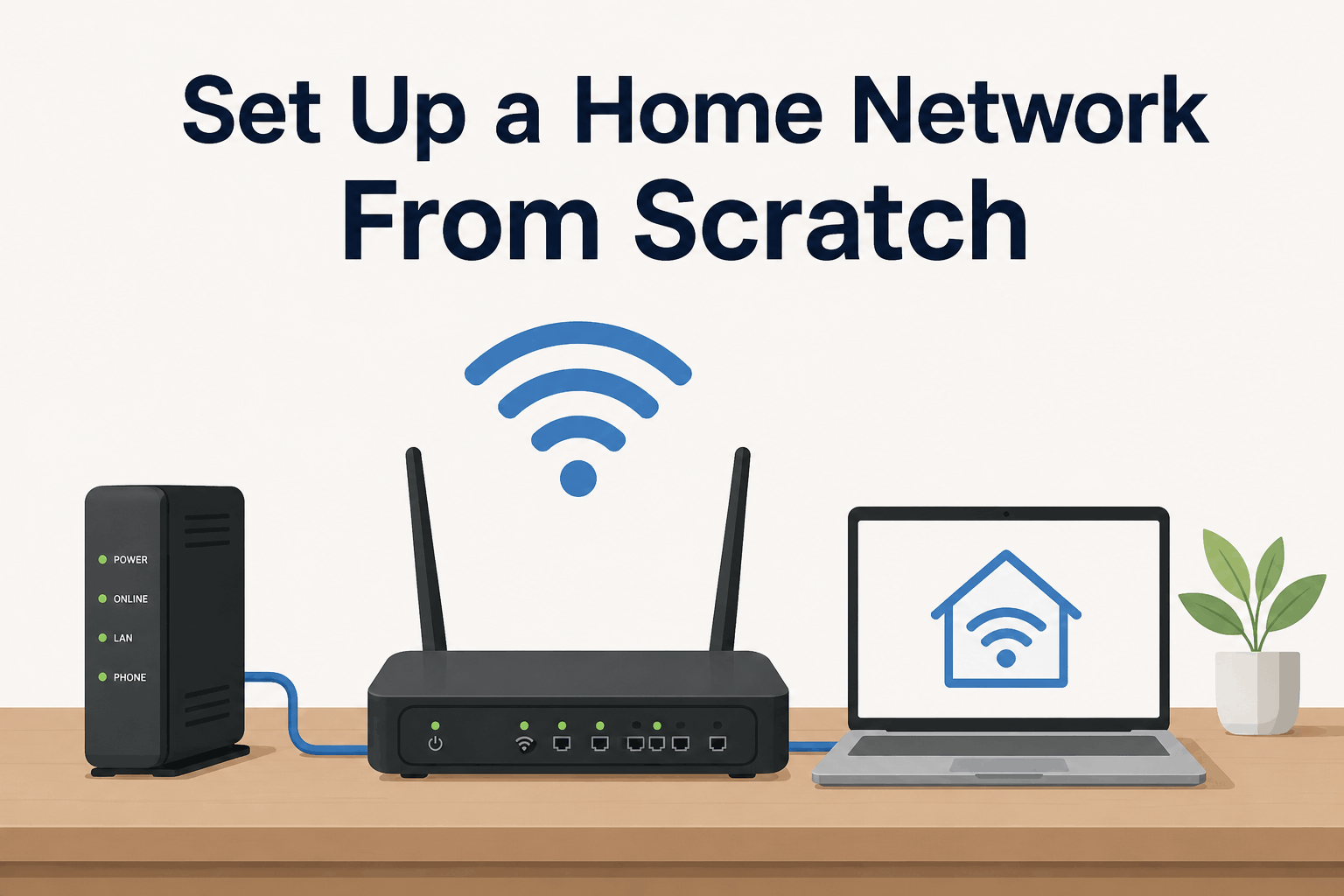
Set Up a Home Network From Scratch: Unpacking a new modem and router should feel exciting, not like you’re about to fail a technical exam. 1 without a second thought, so that’s a big gap. The reality?
About half of first-time anyone on the platform stall at the “connect modem to router” step. Because nobody bothered to label the ports plainly. If you skip a key security setting, you’re basically inviting freeloaders; or worse, onto your network. A secure home network doesn’t happen by accident; it follows a breeze, repeatable sequence, and this tutorial gives you that exact sequence.
It’s that simple. Take a deep breath, grab your devices, and we’ll walk through setting up a reliable, properly secured home network, step by boring step.
The short version
- Plug your modem into the router’s WAN port, then the router’s LAN port to your computer, if you remember only one physical connection, it’s this.
- Immediately change the router’s admin password and set a unique Wi-Fi name with WPA3 (or WPA2) encryption, this single move prevents most intrusions.
- After setup, run a wired and wireless speed test to confirm your internet speed and diagnose any dead zones; reposition the router if needed.
Table of Contents
- What You’ll Build
- Prerequisites
- Step 1: Position the Router Correctly
- Step 2: Connect the Modem to the Router
- Step 3: Power On and Wait for Boot-Up
- Step 4: Access the Router’s Admin Interface
- Step 5: Change Administrator Credentials
- Step 6: Configure Wi-Fi Security and Network Name
- Step 7: Connect Your Devices and Test
- Verification: Testing It Works
- Next Steps
- FAQs
Key Point
If you skip straight to the action, here’s what actually matters.
- Changing the admin password comes first. Not the Wi-Fi password, the router’s own login.
- Pick WPA2 or WPA3 for wireless security. WPA3 is better, but WPA2 is still solid.
- Central placement beats signal boosting; placing the router on the floor or behind a TV kills range.
What You’ll Build
After completing this tutorial, you’ll have a home Wi-Fi network with a custom network name, strong encryption, and a router locked down against unauthorized access, plus a clear picture of your coverage.
Prerequisites
You need a broadband modem (usually offers by your ISP), a wireless router, at least one Ethernet cable, and a computer or smartphone to access the router’s settings. No prior networking go through is assumed. If your ISP gave you a combo modem-router unit, the connection steps simplify a bit; you’ll log into a single device.
Step 1: Position the Router Correctly for (Set Up a Home Network From Scratch)
A central spot in your home, elevated off the floor and away from thick walls, mirrors, and large appliances, makes the most of your router’s antennas and reduces dead zones.
Wi‑Fi signals travel outward and downward, so a high shelf or a desk in a hallway often works better than a corner behind a sofa. Metal objects and even some cordless phones can slice your coverage.
Here’s the thing – i’ve walked into homes where the router sat inside a cabinet, and the internet scarcely reached the next room. The fix is embarrassingly painless.
From what you’ll see, expected Result: The router is in a location that looks straight into the rooms you want to cover, with no major obstacles blocking the Wi‑Fi path.
Step 2: Connect the Modem to the Router
Use an Ethernet cable to link the modem’s LAN port (or the only Ethernet port) to the router’s WAN (Internet) port, this is the primary data highway between your ISP and your home network.
Keep in mind what we talked about earlier, many beginners panic at the sight of identical-looking ports. ”. If your modem and router are the same box, skip this cable running completely, but for separate devices, this single wire is non-negotiable.
Now, expected Result: The router’s WAN/Internet light blinks and then stays solid, indicating a successful connection to the modem.
Step 3: Power On and Wait for Boot-Up
Connect both modem and router to power, turn on the modem first, wait until its lights stabilize (usually 60–90 seconds), then power on the router and give it another couple of minutes to boot.
This order matters. A router that powers up. Before it sees a sync signal from the modem sometimes sits in a stubborn loop. If things still look off, restart the modem. After the router is totally up; multiple guides swear by that two-minute restart trick.
In real-world terms, expected Result: All lights on both devices turn solid (except the activity light. Which may flicker), and a new default Wi‑Fi network appears.
Step 4: Access the Router’s Admin Interface
Open a web browser on a device connected to the router (via Ethernet or Wi‑Fi) and type the router’s default IP address, often 192.168.0.1, 192.168.1.1, or 192.168.1.254, into the address bar. Log in with the default credentials printed on the router sticker.
If you’ve almost never done this, the browser may show a security warning. Because the connection isn’t encrypted yet. Click through; it’s safe to proceed on your local network. Modern routers also let you use a smartphone app, but the browser gives you every setting, no app permissions required.
Under normal conditions, expected Result: You see the router’s login screen with fields for username and password.
Step 5: Change Administrator Credentials
Inside the router’s settings, work through to the system or administration tab, and set a strong, unique admin password, one you don’t use elsewhere. This locks the door to your router’s control panel.
Honestly, default logins are a joke. Something like “admin / password” is published on a hundred support sites. Changing this is the single most overlooked home network security move.
For a deeper look at why this matters, the business network security fundamentals apply just as much at home, and if you’re curious what security software adds to the mix, the What Is Cybersecurity Software? overview clears that up.
Expected Result: The router prompts you to log in with the new credentials, and the old defaults stop working.
Step 6: Configure Wi‑Fi Security and Network Name
Create a memorable but not personally identifying SSID (network name), and set the security mode to WPA3‑Personal if your router supports it, otherwise WPA2‑PSK (AES). Create a Wi‑Fi password that’s at least 12 characters long, mixing letters, numbers, and symbols.
This part is where home Wi‑Fi protection really locks in. WPA3 is preferred, but a surprising number of routers still ship with WPA2‑only firmware, which is fine. The bigger mistake is keeping the network name “Linksys” or “NETGEAR37”; that broadcasts your router model to anyone who scans for networks.
For habits that protect you beyond the router, these 6 essential cybersecurity tips extend the same logic.
Expected Result: The router broadcasts the new SSID, and the old default network disappears from the air.
Step 7: Connect Your Devices and Test
On your phone, laptop, or tablet, scan for the new Wi‑Fi network name, enter the password you just created, and make sure you can reach a website. Then connect all your smart devices one by one.
That moment when your device grabs the new name and you see the internet work, it’s genuinely satisfying. If a device refuses to connect, double-check that you’re typing the password exactly; capitals matter. Some IoT gadgets need a brief restart before they sniff the new network.
Circling back for a moment, you might find that this is exactly what that first point lead to, realistically. But here’s the thing – expected Result: All devices show an internet connection, and you can stream a quick video on each to confirm throughput.
Verification: Testing It Works
Run a speed test on a computer plugged into the router via Ethernet to get a baseline of your ISP speed. Then test wirelessly in several rooms using the Speedtest app or fast.com to identify weak spots.
Wired first tells you whether your plan is delivering what you pay for. If that wired number is close to your advertised speed, the router is healthy.
In practical terms, then unplug and move to the farthest corner of your home. That wireless result reveals where a mesh node or extender might be needed.
This detail matters more than it might seem right now.
Next Steps
You’ve got a clean, secure network. So now consider three rapid upgrades that pay off over time: allows automatic firmware updates. So your router patches itself, set up a guest Wi‑Fi network. Visitors don’t touch your main devices, and. Try it out. If square footage demands it.
Now, even a hassle-free Wi‑Fi extender can salvage a dead zone. After that, your home network runs like a quiet appliance. Which is exactly how it should be.
FAQs
What if my router doesn’t support WPA3?
Your network stays secure with WPA2‑PSK (AES) turned on; WPA3 is a stronger lock, but WPA2 still keeps out casual eavesdroppers.
Just make sure you’ve changed the default admin password and use a complex Wi‑Fi passphrase. Many budget routers ship with WPA2 as the only option, and for approximately 90% of households that’s enough.
How do I know which port is the WAN port?
**The WAN port is often colored differently (blue or yellow) and labeled “Internet” or “WAN.”**It’s physically separated from the LAN ports, which are usually numbered 1–4. If in doubt, check the router’s manual or a sticker on the bottom, the port layout is nearly universal.
Do I need a computer to set up my router?
No; most modern routers offer a smartphone app that guides you through the same steps.
You can also open your phone’s browser, type the router’s IP, and configure everything. A laptop with an Ethernet port just makes first troubleshooting easier, but a tablet or phone works fine.
Why is my internet slow even after setup?
Test with a wired connection first; if it’s still slow, contact your ISP; the router may not be the culprit.
If wired is rapid but wireless sluggish, reposition the router, switch to a less crowded Wi‑Fi channel in the admin interface, or upgrade to a mesh system. Congestion from neighboring networks on the same channel is a common, sneaky cause.
Is it safe to keep the default network name?
No. A default SSID like “NETGEAR37” tells attackers the router model, making it easier to exploit known vulnerabilities. Changing it to something generic adds a small but useful layer of obscurity. Combine that with a strong password and you’re already more secure than 7 out of 10 households.
Now that your network is secure, take five minutes to check for firmware updates. Then sit back and enjoy a connection that actually works in every corner of your home. When you’re ready to step things up, explore advanced settings like QoS and parental controls, your router has more tricks than you’d expect.
Share This Network Security Guide
Help IT professionals, network engineers, and students strengthen their cyber defense.
Zubayer Hasan
LinkedIn Profile →Md Zubayer AL Hasan is the lead cybersecurity platform architect and security researcher at SafeNetworkHub. Dedicated to zero-knowledge cryptography, infrastructure vulnerability auditing, and building accessible privacy tools.
0 Comments
No comments yet
Have a question or insight about this network security guide? Be the first to share your thoughts!
Write the first comment →