
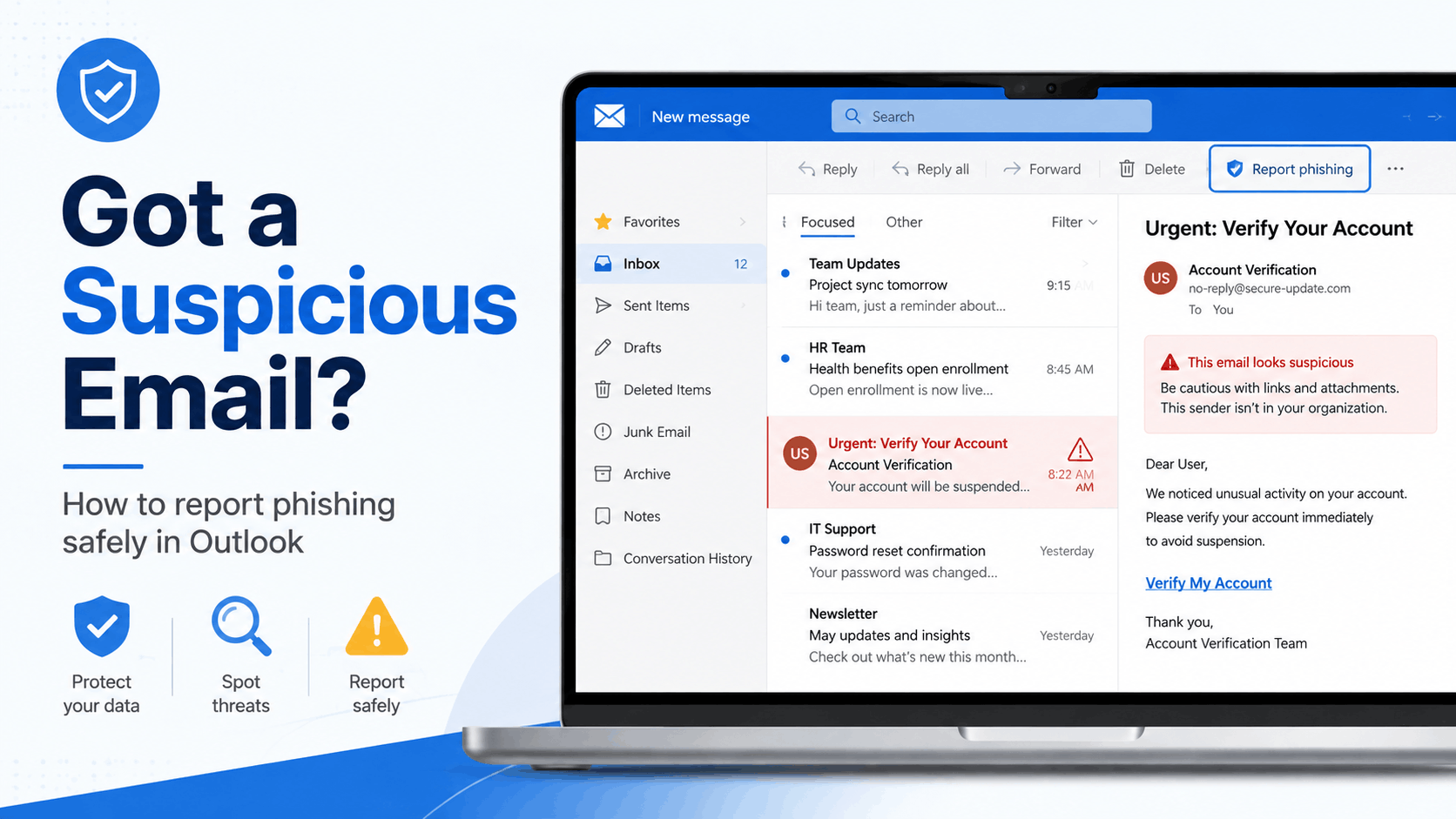
A suspicious email just landed in your Outlook inbox. Maybe it says your Microsoft account will be locked. Maybe there is an unexpected invoice, a password-reset button, or an attachment you were not expecting.
The most important thing right now is not to panic and not to interact with the message unnecessarily.
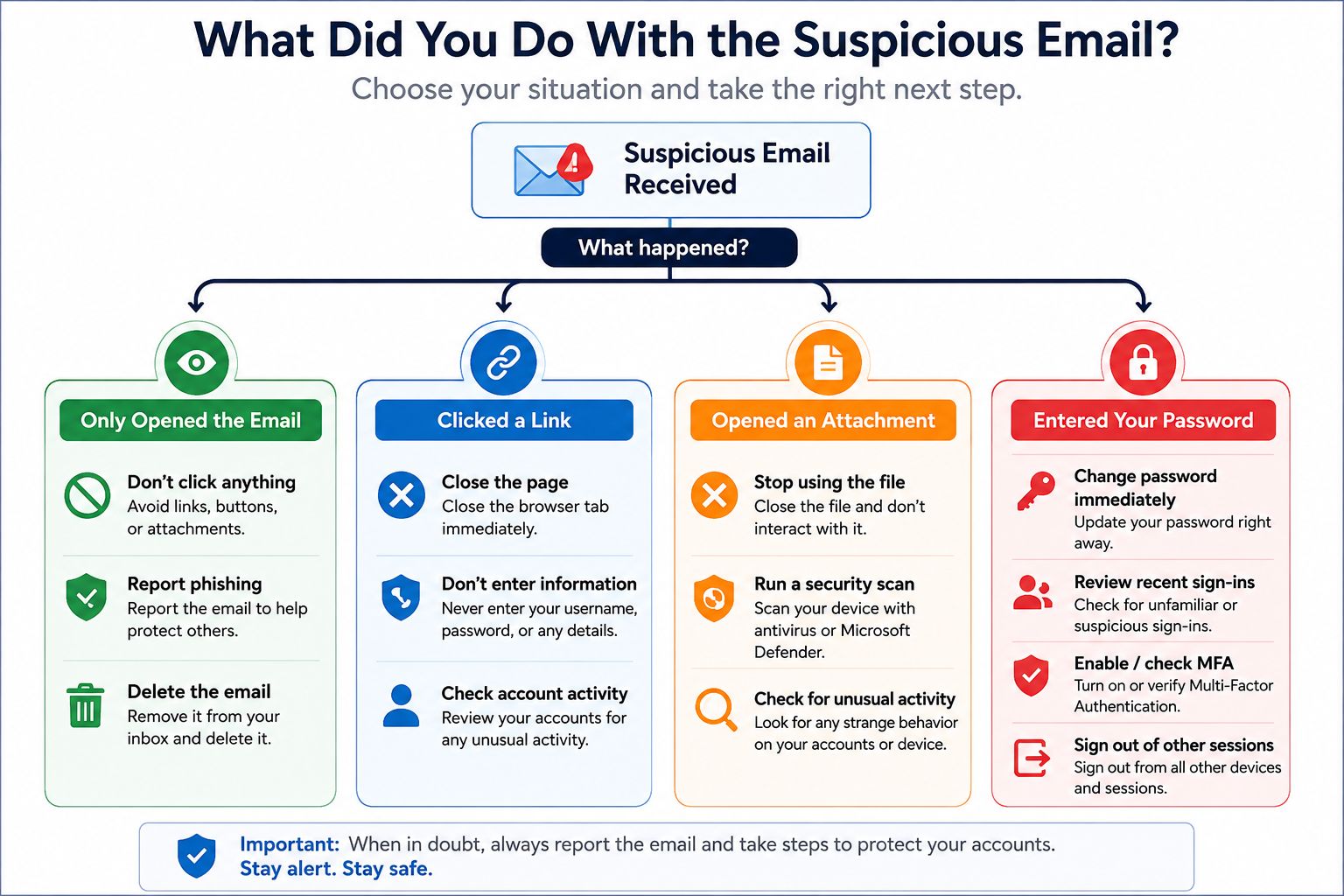
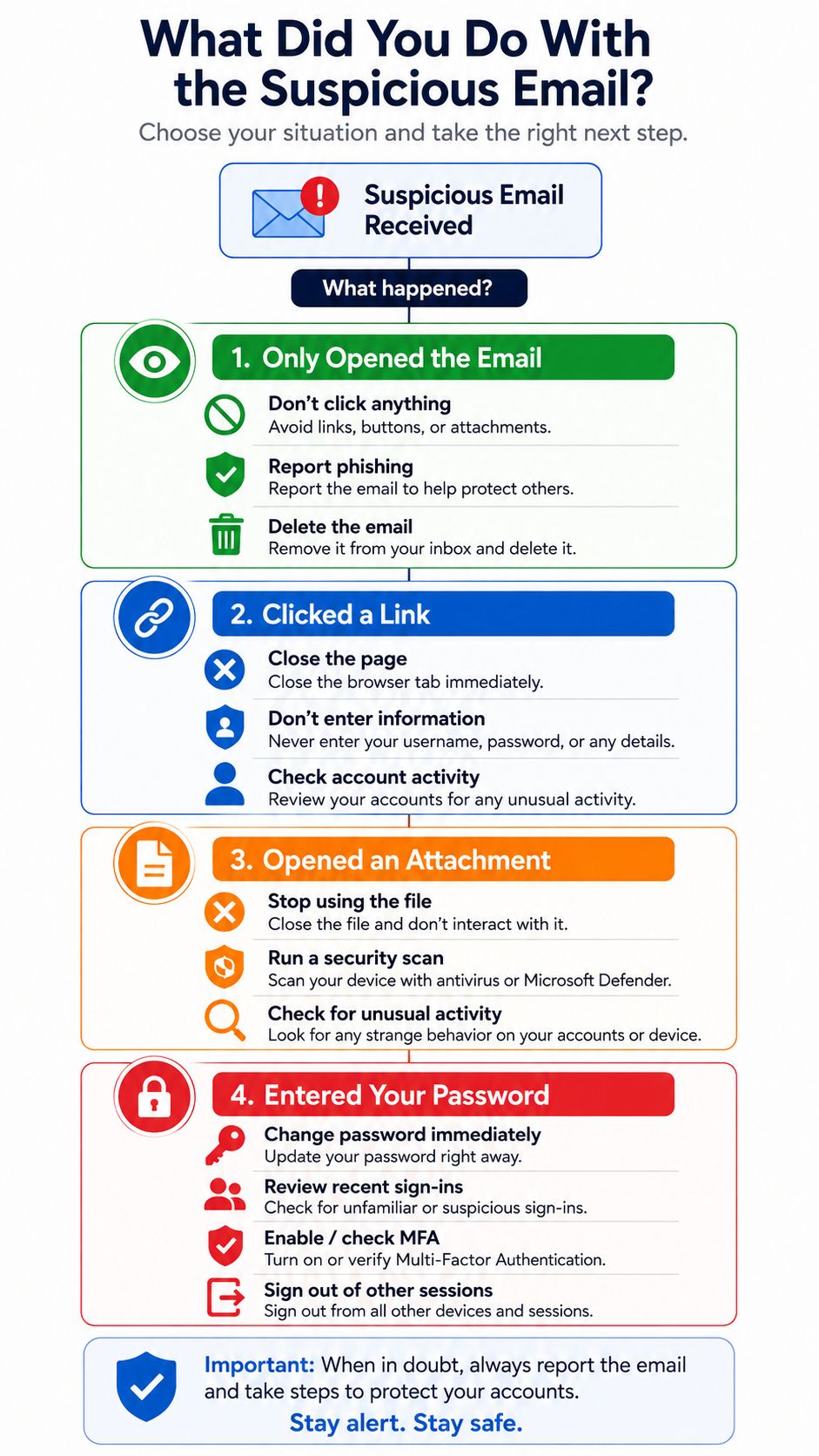
If you have not clicked a link, opened an attachment, replied, or entered any information, select the message and report it as phishing. If you already opened, clicked, downloaded something, or entered your password, use the quick guide below to see exactly what to do next.
What Should You Do Right Now?
Use the situation that matches what happened:
You only received the suspicious email: Do not click anything. Check the sender, report the message as phishing, then remove it.
You opened the email but did not click anything: Avoid links, attachments, replies, QR codes, and requests to download external content. Report the email and delete it.
You clicked a link but entered no information: Close the page. Do not return to it. Check where the link took you and continue with the security checks later in this guide.
You downloaded or opened an attachment: Treat the situation more seriously. Run a security scan, especially if the attachment launched a file or program.
You entered your Microsoft password: Change the password immediately, review recent account activity, check your security settings, and sign out of other sessions if necessary.
Microsoft describes phishing as messages designed to look legitimate while trying to steal personal information or money. Common examples include fake documents, unexpected invoices, and messages that direct you to a page asking for your email address and password.
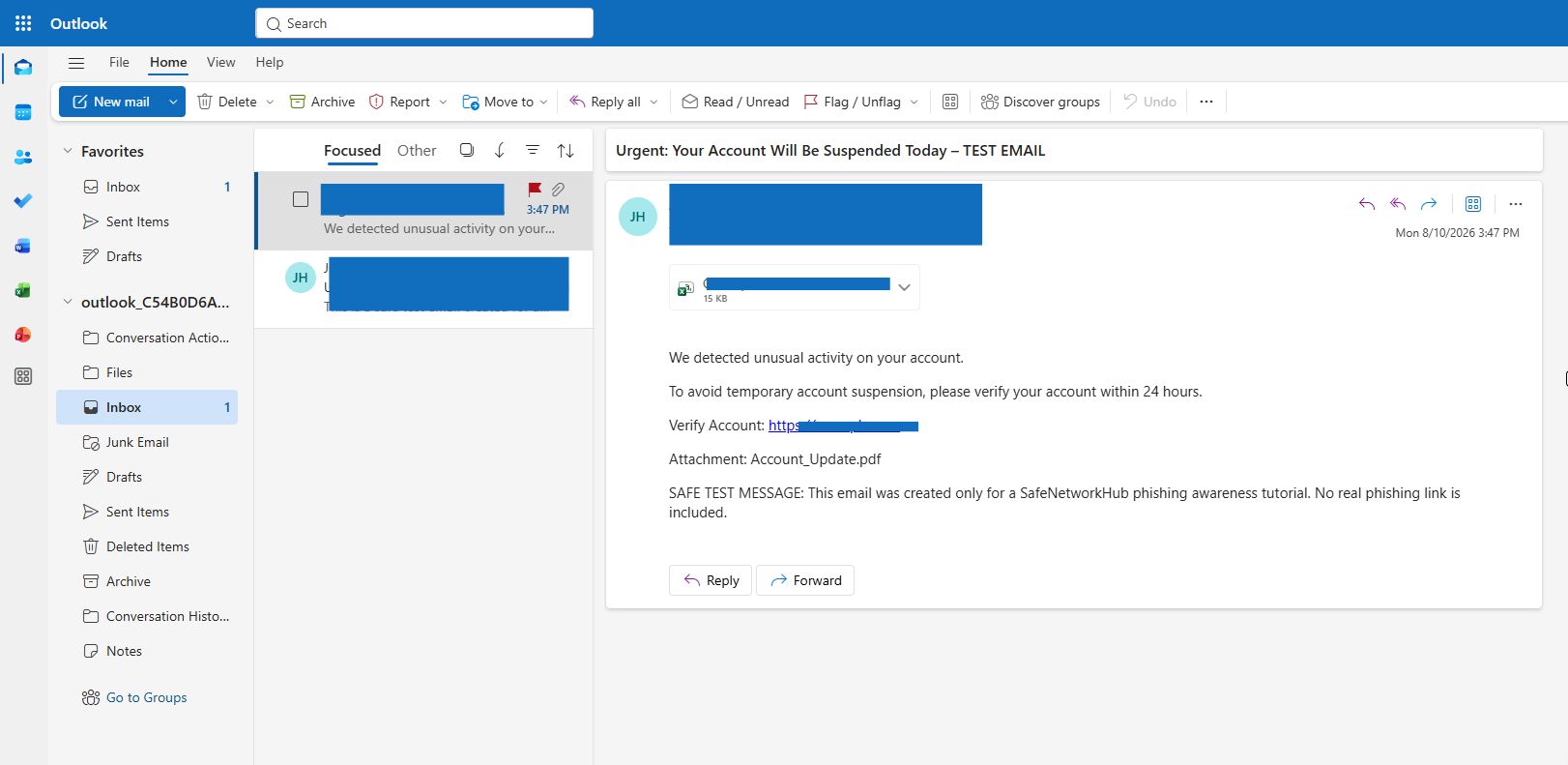
Got a Suspicious Email in Outlook? Check These Signs Before Doing Anything
You do not need to become a cybersecurity expert to notice many phishing emails.
Start with a few simple checks.
Check the real sender address
A display name such as “Microsoft Account Team” does not prove Microsoft sent the message.
Look at the complete email address.
A scammer might use something such as [email protected] while displaying “Microsoft Support” as the sender name.
Outlook may also show a question mark beside senders it cannot verify. Microsoft says Outlook can display an unverified-sender indicator when it cannot authenticate the sender’s identity.
Look for a suspicious “via” address
Sometimes the visible From address and the actual sending domain are different.
Outlook can show a via label when it detects that difference. A via label does not automatically mean the email is malicious, but an unfamiliar domain is a good reason to investigate before interacting with the message.
Be careful with unexpected urgency
Common phishing pressure includes:
- “Your account will be suspended today.”
- “Payment failed.”
- “Confirm your identity immediately.”
- “You have 24 hours to respond.”
- “Your mailbox is full.”
- “Unusual activity detected.”
- “Review this invoice now.”
Urgency is effective because it encourages you to react before checking whether the message makes sense.
Treat unexpected attachments carefully
Be especially cautious if you were not expecting the document.
Examples include:
- Unexpected invoices
- Shared documents
- ZIP files
- HTML files
- Fake voicemail attachments
- Password-protected documents
- Files asking you to sign in before viewing them
Microsoft specifically lists unexpected invoices and fake hosted documents that request email credentials among common phishing patterns.
Don’t trust a link just because the button looks legitimate
A button can say Review Microsoft Account while linking somewhere completely unrelated to Microsoft.
On a computer, inspect the destination before following a link. If you are already suspicious, the safer option is usually not to use the email link at all. Open the service independently from a bookmark or by typing the official website address yourself.
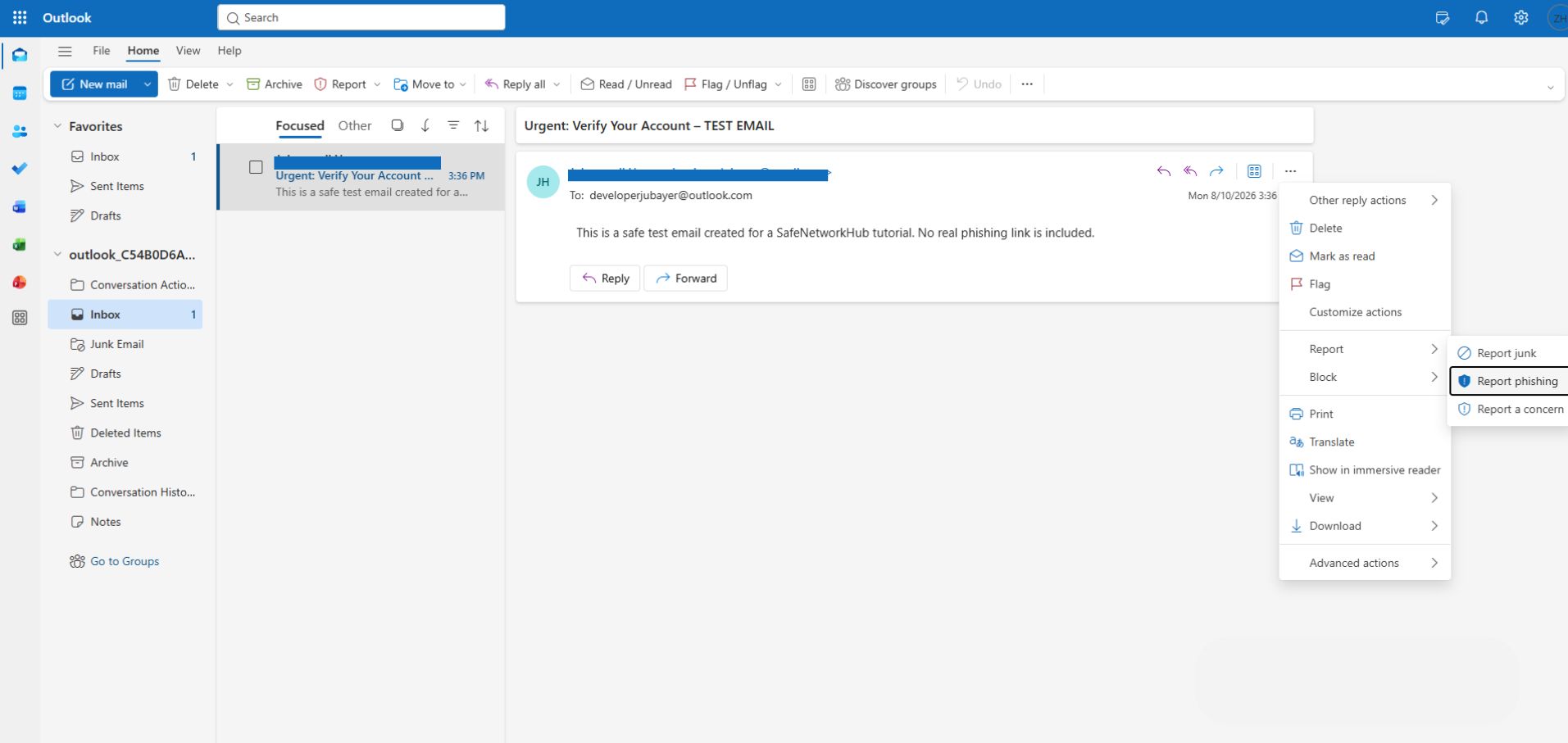
How to Report Phishing Email in Outlook
If the message appears suspicious, report it before simply deleting it.
The exact interface can vary slightly depending on the Outlook version you use.
Outlook.com and Outlook on the Web
Microsoft’s current instructions are straightforward:
- Go to your message list.
- Select the suspicious message.
- Find Report above the reading pane.
- Select Report phishing.
Microsoft also allows multiple messages to be selected and reported.
You usually do not need to click any link inside the suspicious email to report it.
New Outlook for Windows
In supported versions of Outlook, Microsoft provides a built-in Report button.
Select the suspicious message, choose Report, and then choose Report phishing. Microsoft says the built-in reporting feature is available in new Outlook for Windows, Outlook on the web, recent Outlook for Microsoft 365 versions, Mac, iOS, and Android.
Classic Outlook
If you are using a supported Microsoft 365 version of classic Outlook, look for the Report control in the ribbon after selecting the message.
Depending on your Outlook version and organization, the exact appearance may be slightly different.
Do not worry if an older tutorial shows a separate “Report Phishing” add-in. Microsoft is moving organizations away from the older Report Message and Report Phishing add-ins toward the built-in Report button.
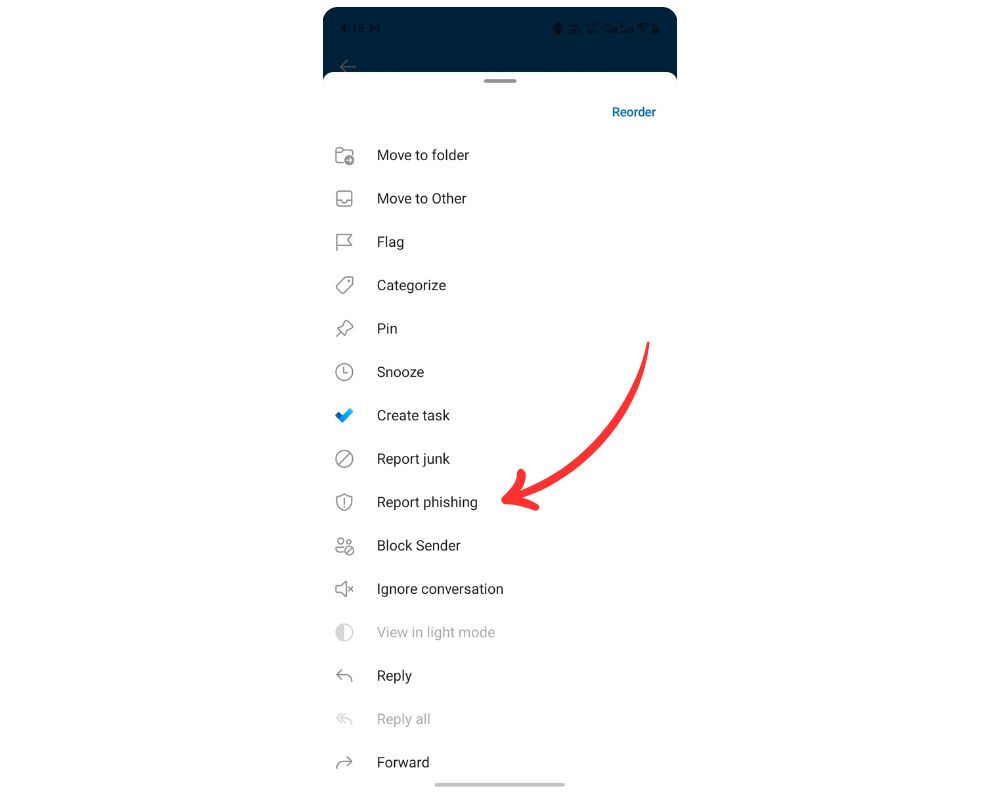
Outlook Mobile App on iPhone or Android
Microsoft’s current mobile instructions are:
- Select the email.
- Tap the three-dot menu (⋮) at the top right.
- Choose Report Junk.
- Select Phishing.
You may also see options for Junk or Block Sender.
Where Is My Report Phishing Button in Outlook?
This is one of the most frustrating situations: you know the email looks suspicious, but you cannot find the Report Phishing button.
First, make sure you are looking for the newer Report button rather than an older standalone Report Phishing add-in.
Microsoft’s current reporting system uses a built-in Report control on supported Outlook versions.
If you use a personal Outlook account
Try these checks:
If you use a work or school Outlook account
Your organization may control how reporting works.
Microsoft states that the built-in Report button is available in supported enterprise Outlook versions when user reporting is enabled and the built-in reporting option is configured by the organization.
So if the button is missing from a company or school mailbox, contact your IT or security team before spending a long time trying random fixes.
Your administrator may have configured:
- Microsoft’s built-in Report button
- Another security company’s reporting button
- A dedicated reporting mailbox
- Reporting to Microsoft
- Reporting to your organization’s security team
- Reporting to both
Why can’t I report phishing in the Outlook mobile app?
First update the Outlook app.
Then select the message and check:
⋮ > Report Junk > Phishing
Microsoft currently documents this flow for Outlook on both Android and iOS.
If you use a managed work or school account and the reporting option is still unavailable, your organization’s configuration may be involved.
Should You Report a Phishing Email or Just Delete It?
Report it first when possible, then remove it.
Deleting an email gets it out of your inbox.
Reporting it provides additional information that may help Microsoft or your organization’s security team analyze suspicious messages.
For Microsoft 365 organizations, administrators can configure reported messages to go to Microsoft, an internal reporting mailbox, or both.
There is another important difference:
Reporting a phishing email is not necessarily the same as blocking the sender.
For Outlook.com, Microsoft specifically notes that reporting a message as phishing reports the sender but does not automatically block the sender from sending additional messages. Blocking the sender is a separate action.
Report → flag the suspicious message.
Block → stop messages from that sender address.
Delete → remove the message from your mailbox.
Reporting first is normally the most useful choice when the option is available.
Can I Get Phished Just by Opening an Email?
If you only opened the email and did not click a link, open an attachment, reply, scan a QR code, approve a sign-in, or enter information, your situation is generally much less serious than someone who entered credentials on a fake website.
Phishing normally depends on getting the victim to do something—for example, follow a link, open a malicious attachment, send sensitive information, or enter login credentials on a fake page. Microsoft’s own phishing examples focus on those kinds of interactions.
That does not mean suspicious emails should be treated casually.
Keep Outlook, your operating system, and security software updated, and avoid interacting further with the message.
Do spammers know if you open an email?
Sometimes email senders can use tiny remote images known as tracking pixels to detect that a message has been opened.
Microsoft says classic Outlook blocks automatic picture downloads from the Internet by default, and one benefit is preventing tracking pixels from telling a sender that you read the email.
For a suspicious message, do not manually enable blocked external images just to see what the email looks like.
Can I get a virus from opening an email but not the attachment?
Simply viewing a suspicious email is not the typical way a phishing attack steals your password.
The larger risks usually begin when you:
- Open or run an unexpected attachment
- Follow a malicious link
- Download a file
- Install software
- Enter credentials
- Approve an unexpected MFA request
- Grant an app access to your account
If you only opened the message and did none of those things, report it, delete it, and stay alert for unusual activity.
If you opened an attachment or downloaded something, follow the security steps below.
What If I Accidentally Opened a Suspicious Email?
First, identify exactly what happened.
If you opened it but clicked nothing
You usually do not need to rush into changing every password you own.
Instead:
- Do not interact with the message again.
- Do not download blocked images.
- Report the message as phishing.
- Delete it.
- Watch for unusual Microsoft account alerts or sign-ins.
If you clicked a link
Close the page.
Then ask yourself: Did I enter anything?
If not, avoid returning to the page and continue monitoring your account.
If the page caused a download, run a security scan.
If you entered your Microsoft password
Treat the password as compromised.
Do not use another link from the suspicious email to change it. Go directly to your Microsoft account and change or reset the password.
Microsoft’s compromised-account guidance also recommends checking account settings after regaining control.
If you approved an unexpected sign-in or MFA request
Review your Microsoft account activity immediately. If you see activity you do not recognize, mark it as unauthorized and secure the account.
Microsoft recommends using the Recent activity page when you believe someone may have accessed your account.
If you opened an attachment
If the attachment ran, installed something, displayed unusual behavior, or asked you to enable content, take the issue more seriously.
On Windows, Microsoft recommends running an updated antivirus or Microsoft Defender scan when recovering a potentially compromised account.
Has My Outlook Email Been Hacked? Check These Warning Signs
Receiving a phishing email does not automatically mean your Outlook account has been hacked.
Look for evidence of unauthorized access instead.
Possible warning signs include:
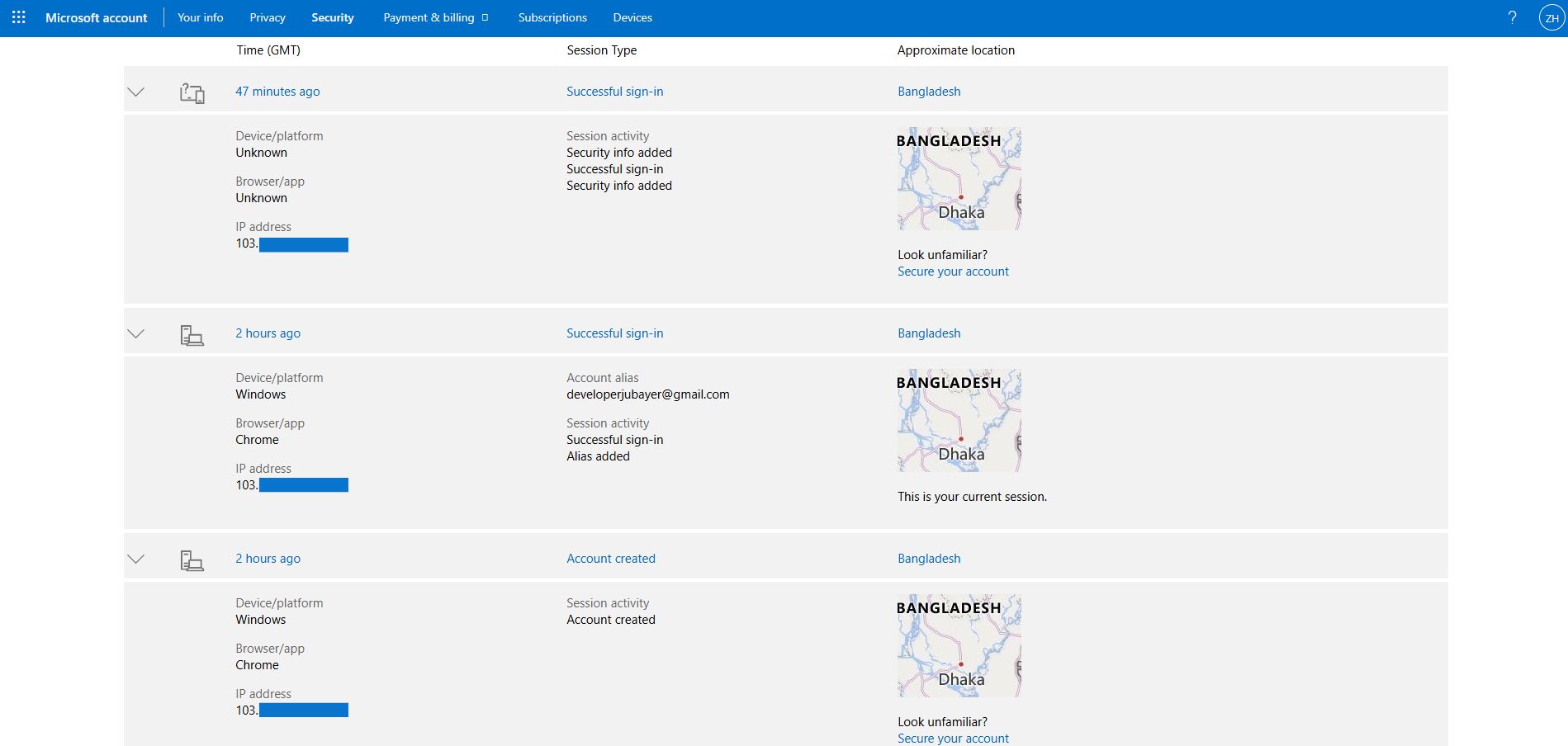
- Successful sign-ins you do not recognize
- Messages sent from your account that you did not send
- Password or security information changes you did not make
- Unfamiliar forwarding settings
- Unusual automatic replies
- Unexpected connected accounts or applications
- Contacts telling you they received strange messages from you
- Microsoft security alerts for locations or devices you do not recognize
How do I check if someone accessed my Outlook account?
For a personal Microsoft account, review your Microsoft account’s Recent activity.
Microsoft recommends checking this page if you believe someone accessed your account. If activity was not yours, you can indicate that and start securing the account.
Do not assume every unsuccessful login attempt means someone got into the account. What matters most is whether you see successful activity you cannot explain or account settings that have changed.
What should I do if my account really was hacked?
If you have evidence that someone gained access:
Microsoft provides a Sign out everywhere option in Advanced security settings. Microsoft notes that the sign-out process can take up to 24 hours and excludes Xbox consoles.
For a work or school account, notify your organization’s IT or security team as soon as possible.
What Happens After You Report Phishing in Outlook?
The exact result can depend on your Outlook account and organization.
For Outlook.com, Microsoft lets you select a suspicious message and choose Report > Report phishing.
In Microsoft 365 organizations, administrators can configure reported messages to be sent:
- To Microsoft
- To an internal reporting mailbox
- Or to both
Organizations can also configure confirmation and success messages that appear when employees report suspicious email.
Do not assume that reporting guarantees you will never see another similar scam. Attackers constantly change sender addresses, domains, accounts, and message wording.
Reporting is one layer of defense—not a replacement for checking messages carefully.
Suspicious Email vs Spam: Should You Handle Them Differently?
Yes.
Spam is generally unwanted or unsolicited email.
Phishing is designed to trick you into revealing information, sending money, opening dangerous content, or giving an attacker access.
A promotional message you never asked for may be spam.
A fake Microsoft warning asking you to “verify your password immediately” may be phishing.
If you are unsure and the message asks for credentials, money, personal information, an urgent login, an attachment download, or an unexpected account action, treat it cautiously.
A 30-Second Outlook Phishing Check
Before trusting a suspicious Outlook message, ask:
If several answers make you uncomfortable, do not take the risk.
Report the message.
What should I do with suspicious emails in Outlook?
Do not click links, open unexpected attachments, reply, or provide information. Check the sender, then use Outlook’s reporting option to report the message as phishing before deleting it.
How do I get rid of suspicious messages in Outlook?
Select the suspicious email, report it as phishing, then remove it. If messages repeatedly come from the same sender, you can also use Outlook’s blocking options.
What should I do with phishing emails in Outlook?
Report them rather than simply ignoring them. On Outlook.com, select the message and choose Report > Report phishing. On Outlook mobile, Microsoft’s current flow is ⋮ > Report Junk > Phishing.
What if I open a spam or phishing email but don’t click anything?
If you only viewed the message and did not click, download, reply, approve anything, or enter information, report and delete it. Avoid loading external content in a suspicious message and monitor your account if anything else seems unusual.
Can my email get hacked just because I opened an email?
Opening a message alone is not the normal phishing path to account takeover. The greater danger is interacting with malicious links, attachments, login forms, or permission requests. Keep your software updated and avoid further interaction with suspicious content.
Do spammers know when I open their email?
They sometimes can use remote tracking images. Classic Outlook blocks automatic external picture downloads by default partly to help prevent tracking pixels from confirming that an email was read.
Is it better to report phishing emails or just delete them?
Report first when possible, then remove the message. Reporting can provide Microsoft or your organization’s security team with information about the threat.
Does reporting a phishing email block the sender?
Not necessarily. Microsoft specifically states that in Outlook.com, reporting a message as phishing does not automatically block the sender. Blocking is a separate action.
Where is the Report Phishing button in Outlook?
In supported desktop and web versions, select the message and look for Report, then choose Report phishing. On mobile, check ⋮ > Report Junk > Phishing. Work or school accounts may have reporting controls configured by an administrator.
Why is my Report Phishing button missing?
Possible reasons include using an unsupported or outdated Outlook version or, on a managed work/school account, organization-level reporting configuration. Update Outlook first. If it is a business or school mailbox, ask your IT administrator how your organization wants suspicious emails reported. Microsoft’s enterprise documentation confirms that user-reporting settings control availability of the built-in Report button in supported organizational Outlook environments.
How can I tell if my Microsoft or Outlook account has been hacked?
Check Microsoft’s Recent activity page for successful sign-ins you do not recognize. Also look for unauthorized password changes, unfamiliar forwarding settings, sent messages you did not create, or security information changes.
Final Check: Report First, Investigate Only as Much as Necessary
When a strange email appears in Outlook, you do not need to spend half an hour investigating every technical detail.
If you were not expecting the message and it asks you to click, log in, send money, open an attachment, or provide sensitive information, stop interacting with it.
If you have done nothing yet: Select it → Report phishing → Remove it.
If you already interacted with it: Identify exactly what you did → secure the affected account or device → review account activity → report the message.
The goal is not to become afraid of every email in your inbox. It is to recognize the moment when an email deserves extra caution—and know exactly what to do next.
Explore More Email & Account Security GuidesShare This Network Security Guide
Help IT professionals, network engineers, and students strengthen their cyber defense.
Zubayer Hasan
LinkedIn Profile →Md Zubayer AL Hasan is the lead cybersecurity platform architect and security researcher at SafeNetworkHub. Dedicated to zero-knowledge cryptography, infrastructure vulnerability auditing, and building accessible privacy tools.
0 Comments
No comments yet
Have a question or insight about this network security guide? Be the first to share your thoughts!
Write the first comment →